AI Q&A helps locate and explain available community information. Answers can be incomplete or mistaken, so check important details against the original material or organiser.
Before you start
Join a community or group where AI Q&A is enabled and your membership permits access. The creator chooses the sources and limits. Administrators with the relevant permission can review community AI conversations; avoid entering secrets or sensitive information.
Steps
1. Open AI Q&A
Choose the AI Q&A entry available in the community or group. Read its access or availability message if the chat is disabled.
2. Start a focused question
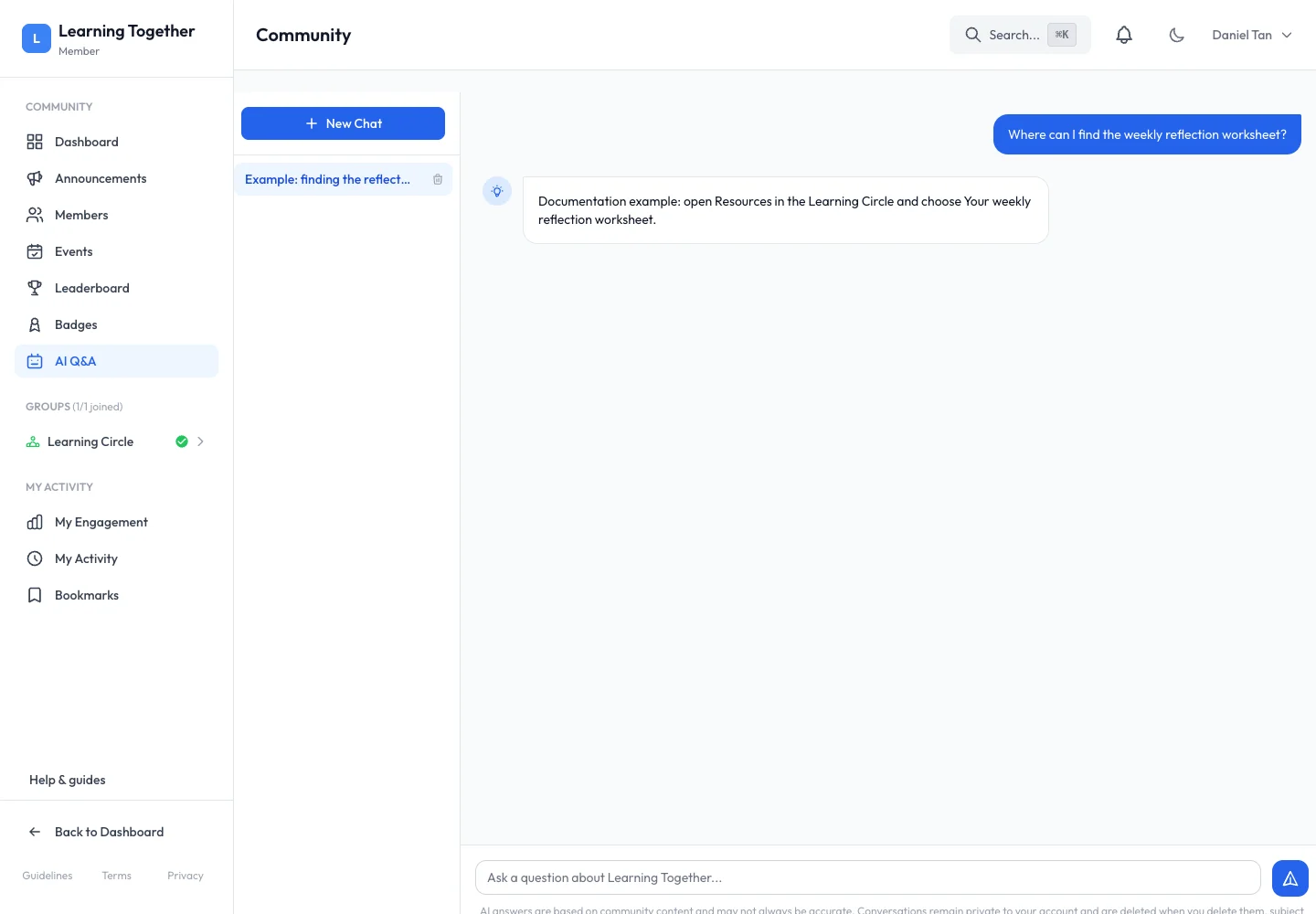
Choose New Chat or open an existing conversation. Ask one clear question with context, such as “Where can I find the weekly reflection worksheet?” Avoid assuming the assistant can access material outside this community.
3. Read the response and sources
Wait for the response, then inspect its explanation and any source links. Open the original resource when you need exact instructions. If the answer is too broad, ask a narrower follow-up referring to the relevant course or group.
4. Return to a conversation
Select its title in the conversation list to continue or reread it. Start a New Chat for a different topic. Use the available delete action only when you intend to remove that conversation.
Expected result
You can ask a focused question, inspect the answer and return to the original community source.
Troubleshooting
- Access unavailable: ask the creator whether your membership level is eligible.
- Monthly limit reached: wait for reset or ask the creator to review usage.
- Answer cannot find the material: name the specific resource and check that you can access it yourself.
- Answer seems wrong: verify with the original source and tell the organiser what question and source caused the problem.