
Community email is a broadcast to eligible members. Invitation imports are a separate tool for people who have not yet accepted membership.
Before you start
Use a slot and plan that permit email broadcasts. Confirm the community sender name, reply-to address and footer in Settings → Email. Only email an audience appropriate for the message.
Steps
1. Compose the message
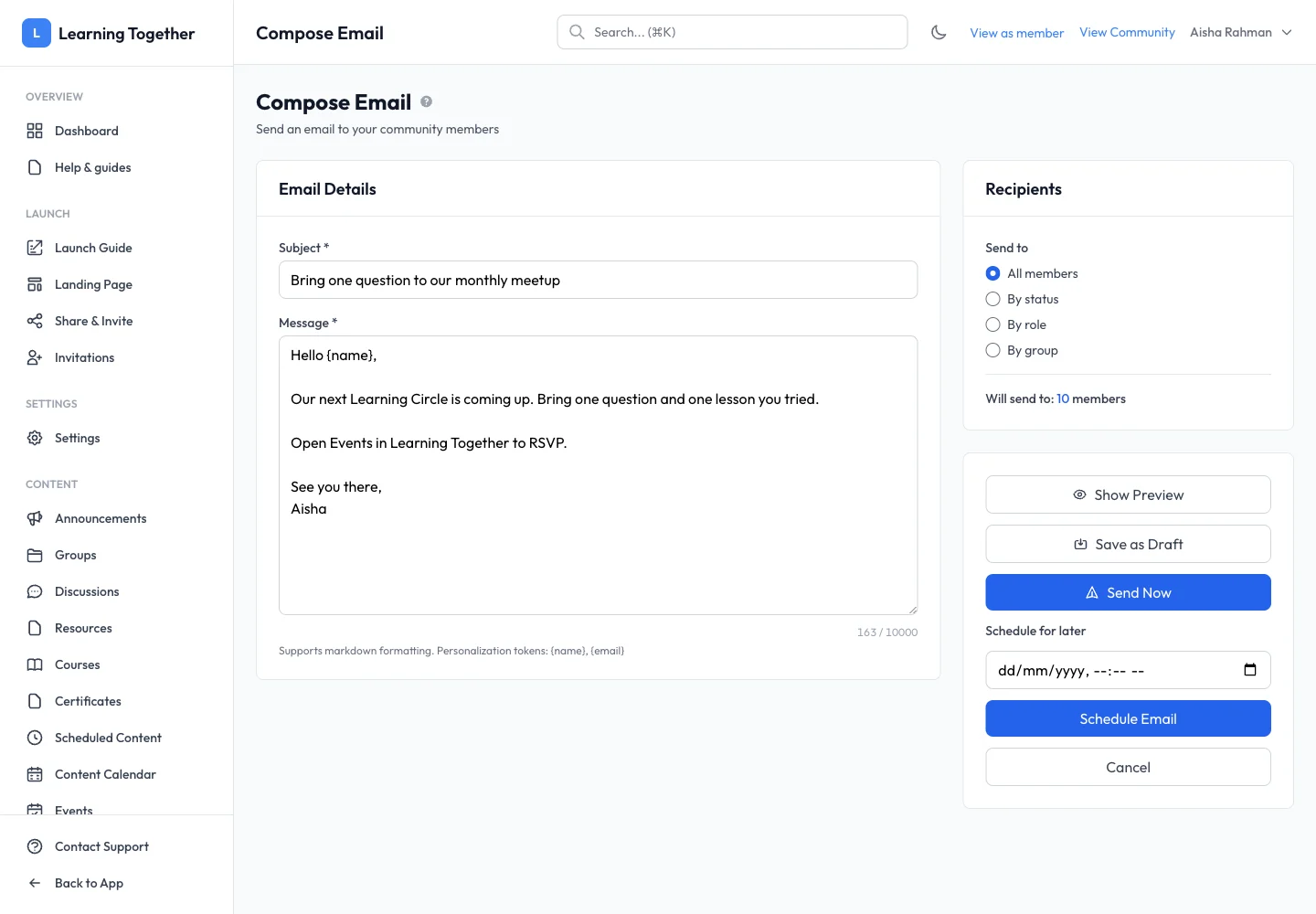
Open Email Communications → Compose Email. Enter Subject and Message. The editor supports Markdown and the tokens {name} and {email}. Keep the subject specific and include one clear action.
2. Choose recipients
Select all members or narrow by status, role or group. Check the recipient count after changing the selection. Avoid assuming that a group filter includes people who have not joined it.
3. Preview and save a draft
Choose Show Preview and review the formatting and tokens. Use Save as Draft while the message is being reviewed. Reopen it to confirm the copy and recipient choice before sending.
4. Send or schedule
Choose Send Now for immediate dispatch, or set Schedule for later and choose Schedule Email. Review the time and confirmation before continuing. Saving a draft does not send it.
5. Follow delivery progress
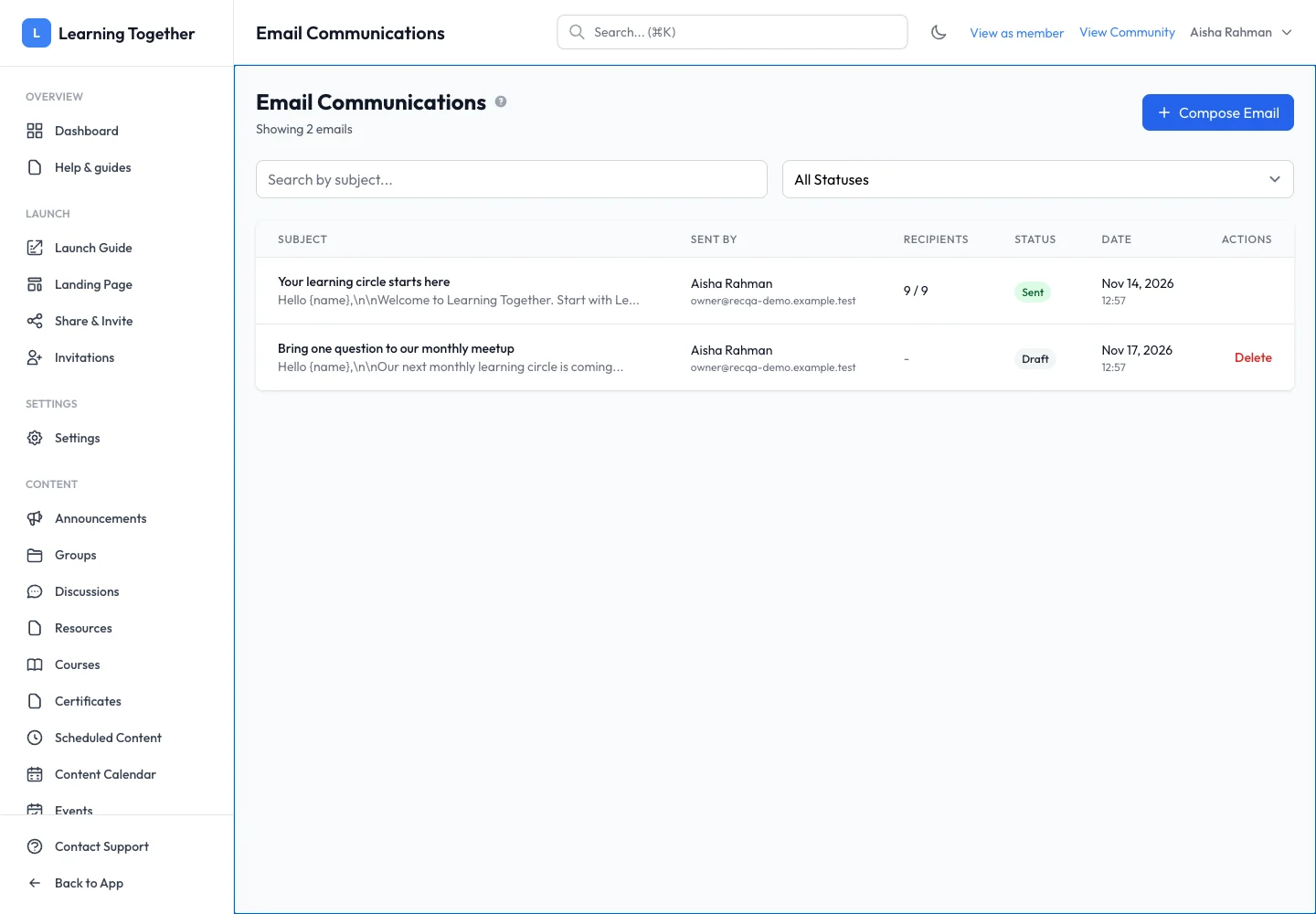
Open Email Communications and inspect the row’s status and recipient counts. Queued, Sending, Sent and Failed describe different stages. A Sent state does not prove every recipient read the message.
Expected result
The message is saved, queued or sent according to your chosen action, with its status available in email history.
Troubleshooting
- Broadcast option missing: review the slot, plan, feature availability and your role.
- Wrong recipient count: check the selected status, role or group.
- Tokens look wrong: use the supported
{name}and{email}spelling and preview again. - Failed delivery: inspect the available result before trying again and avoid duplicate broadcasts.