
Text lessons work well for explanations and exercises. HTML lessons support custom interactive material in a separate sandboxed frame.
Before you start
Create a course and at least one section. Open its curriculum and choose the section where this lesson belongs.
Steps
1. Add a text lesson
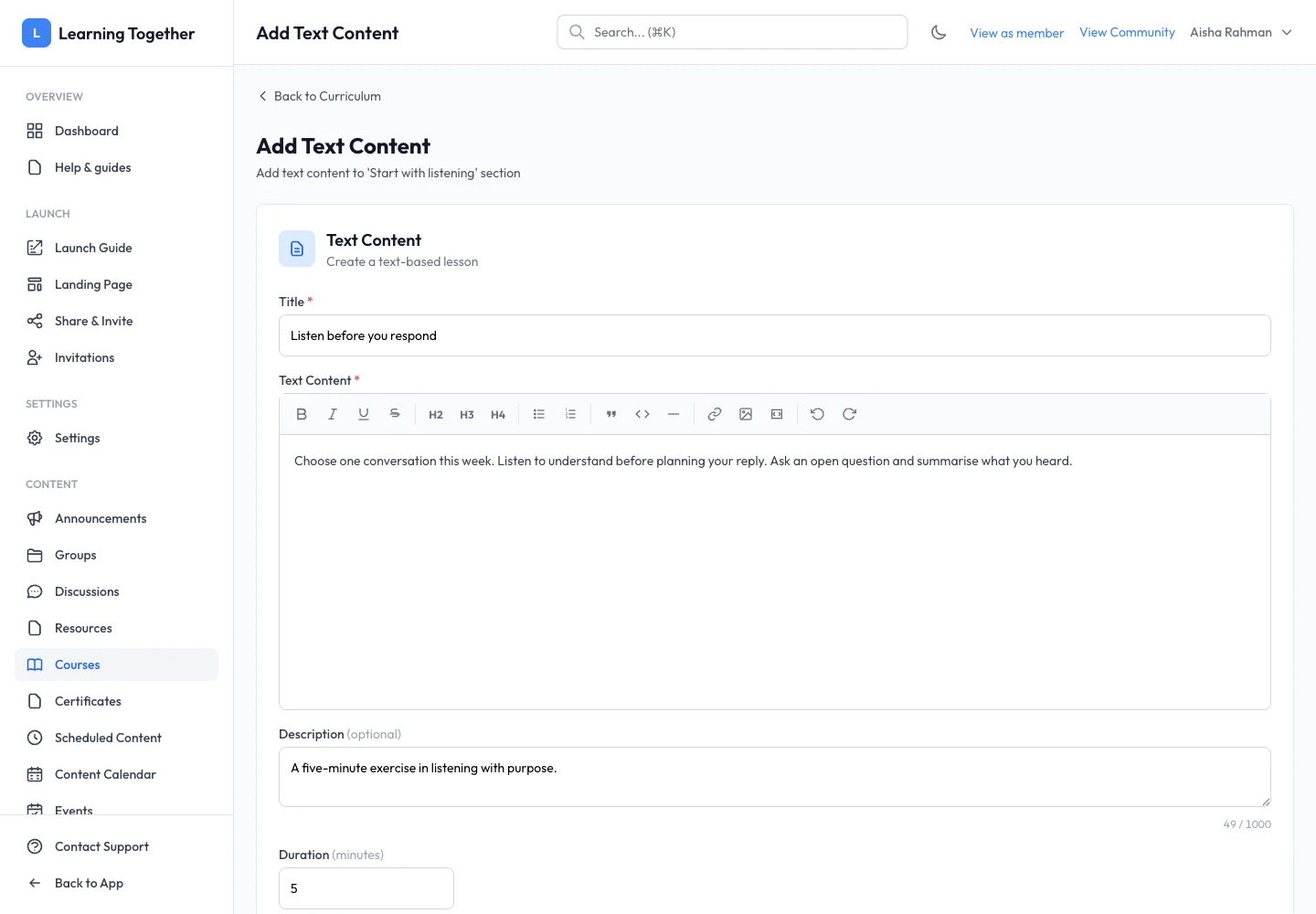
Choose the text-content action for the section. Enter Title and Text Content. Use headings and lists to separate the explanation, example and exercise. Add an optional description and realistic duration.
2. Set preview and completion
Choose Allow preview (free access) only if the lesson should be available before purchase or enrolment. Keep Required for completion enabled for essential lessons. Select Add Content and check its position in the curriculum.
3. Add HTML when needed
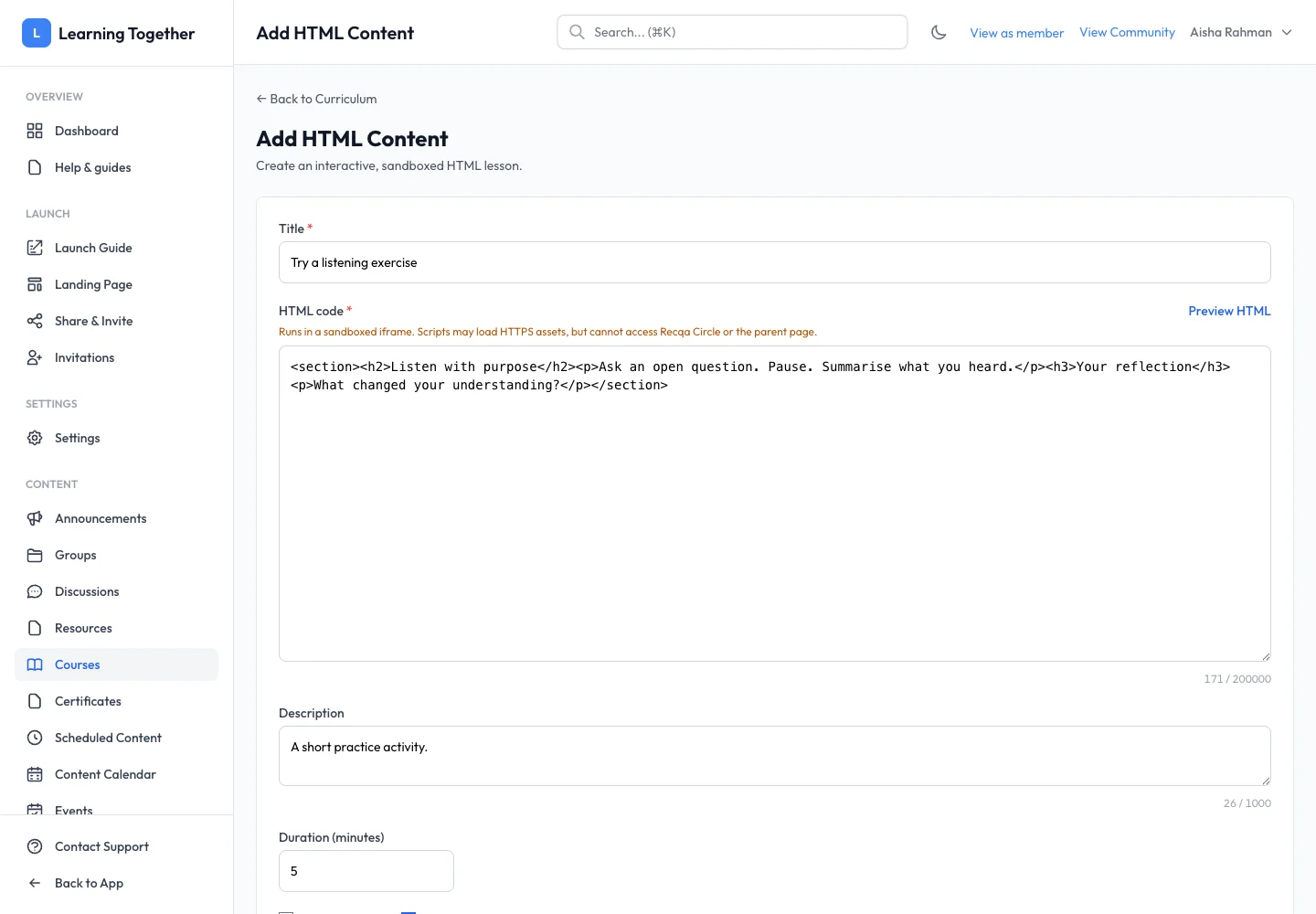
For a custom activity, choose HTML content. Enter Title and HTML code. Use Preview HTML before saving. The activity runs in a sandboxed iframe; it cannot access the parent Recqa page. Do not design it to depend on a logged-in Recqa session or parent-page scripts.
4. Verify the learner view
Set description, duration and completion options, then save. Open the lesson in the course player. Test its controls and a narrow viewport. Ensure learners can read the instructions without having to inspect the code.
Expected result
The lesson appears in its section with readable content and the intended completion and preview rules.
Troubleshooting
- HTML control does nothing: check the activity’s own code and sandbox constraints.
- External asset fails: use an accessible HTTPS source and verify its permissions.
- Text looks crowded: use meaningful headings and shorter paragraphs.
- Lesson visible before purchase: review Allow preview.