Recqa has a personal dashboard for your account and a separate space for each community. Creators also have a management area. Check the community name at the top before making changes.
Before you start
Sign in and join a community. Creators need an owned community or an assigned management role to see its management controls.
Steps
1. Start at your personal dashboard
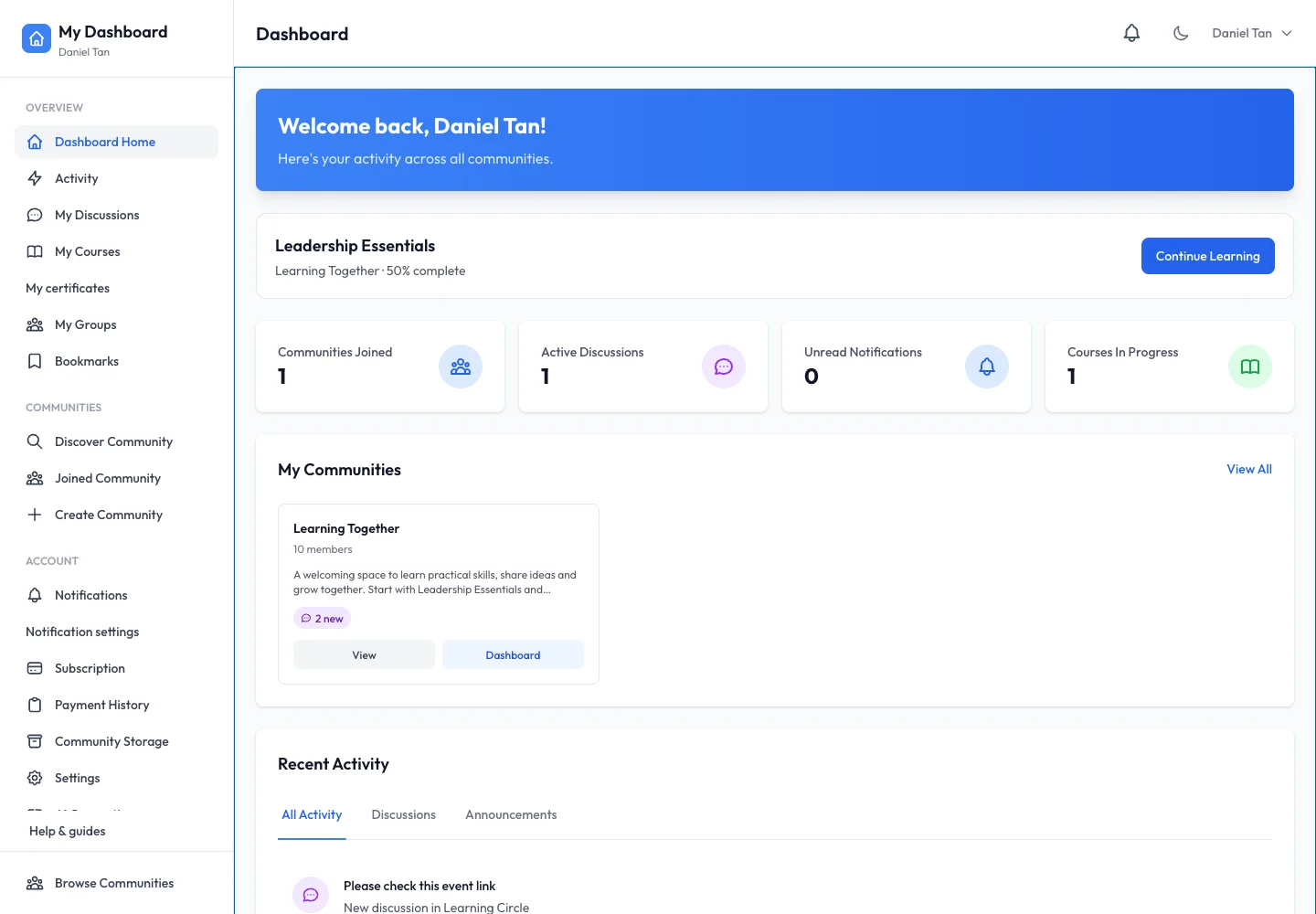
Open Dashboard Home. Use My Courses, My certificates, My Groups, Bookmarks and Notifications to return to your own activity. These shortcuts can bring together items from more than one community.
2. Open a community
Choose Joined Community in the account sidebar and open the community you want. Inside it, use the enabled navigation entries such as Groups, Announcements, Discussions, Resources and Courses. A creator may hide features, so two communities may have different menus.
3. Switch to management when you are a creator
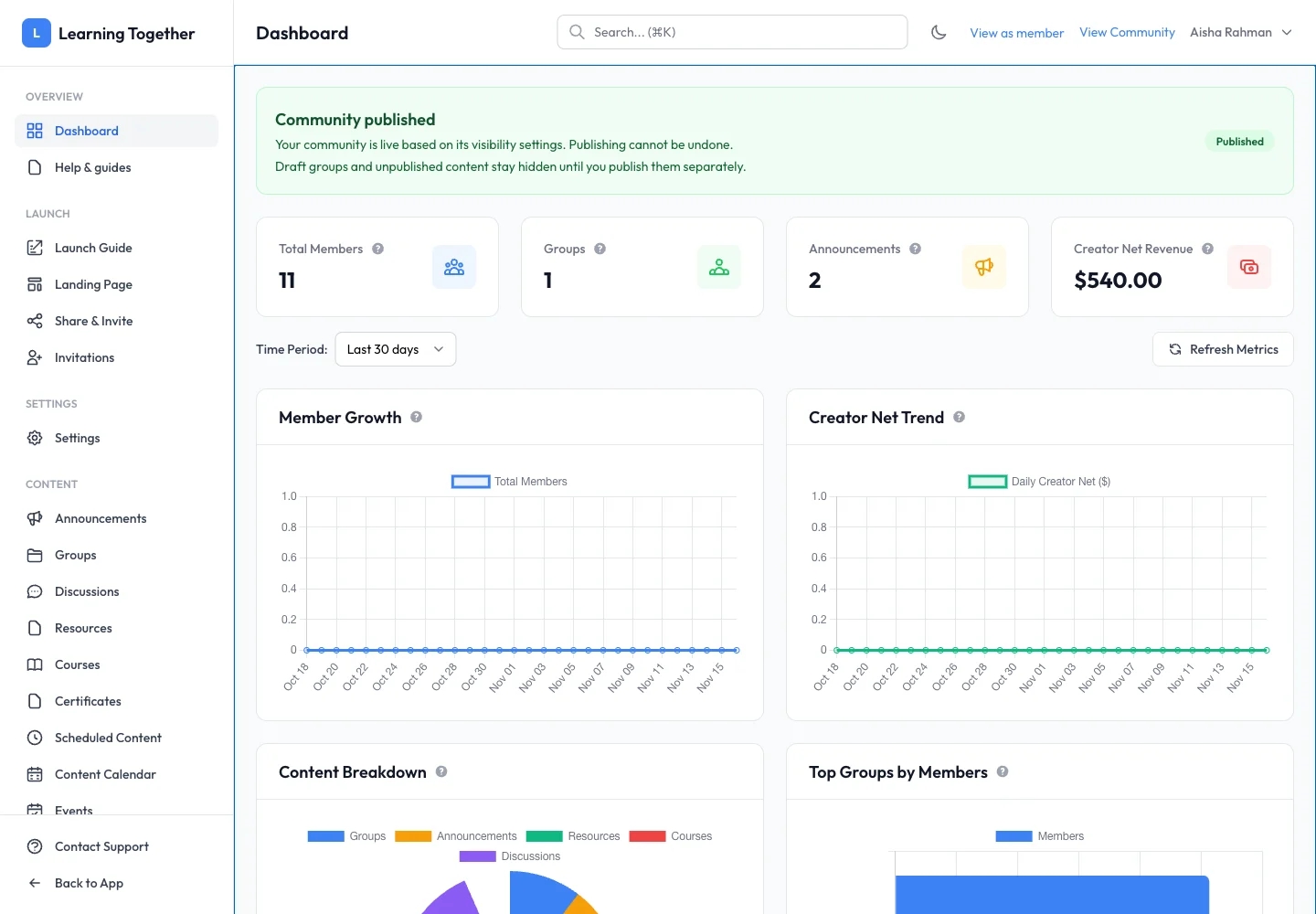
Open your owned community’s management area. Its sidebar includes Launch Guide, Members, content tools, payments and analytics. Use View as member to check the member experience and View Community to inspect the community-facing page. A member preview does not prove that a signed-out visitor has access.
4. Use help in context
Choose Help & guides in the sidebar. Search with a task such as “invite”, “certificate logo” or “course”. Select For members or For creators to narrow results. On a phone, expand the category navigation to browse.
Expected result
You can return to your personal activity, open the correct community and distinguish member actions from management tools.
Troubleshooting
- Management controls missing: confirm your role with the owner.
- A menu item disappeared: check whether the creator disabled that feature or changed access.
- Wrong community open: return to your joined or owned community list before continuing.