
Revenue reports summarise recorded sales. Transactions explain individual payments, and Payouts explain withdrawal requests; keep these stages distinct.
Before you start
Open the correct community with analytics permission. Know which period and currency you want to review.
Steps
1. Open Revenue
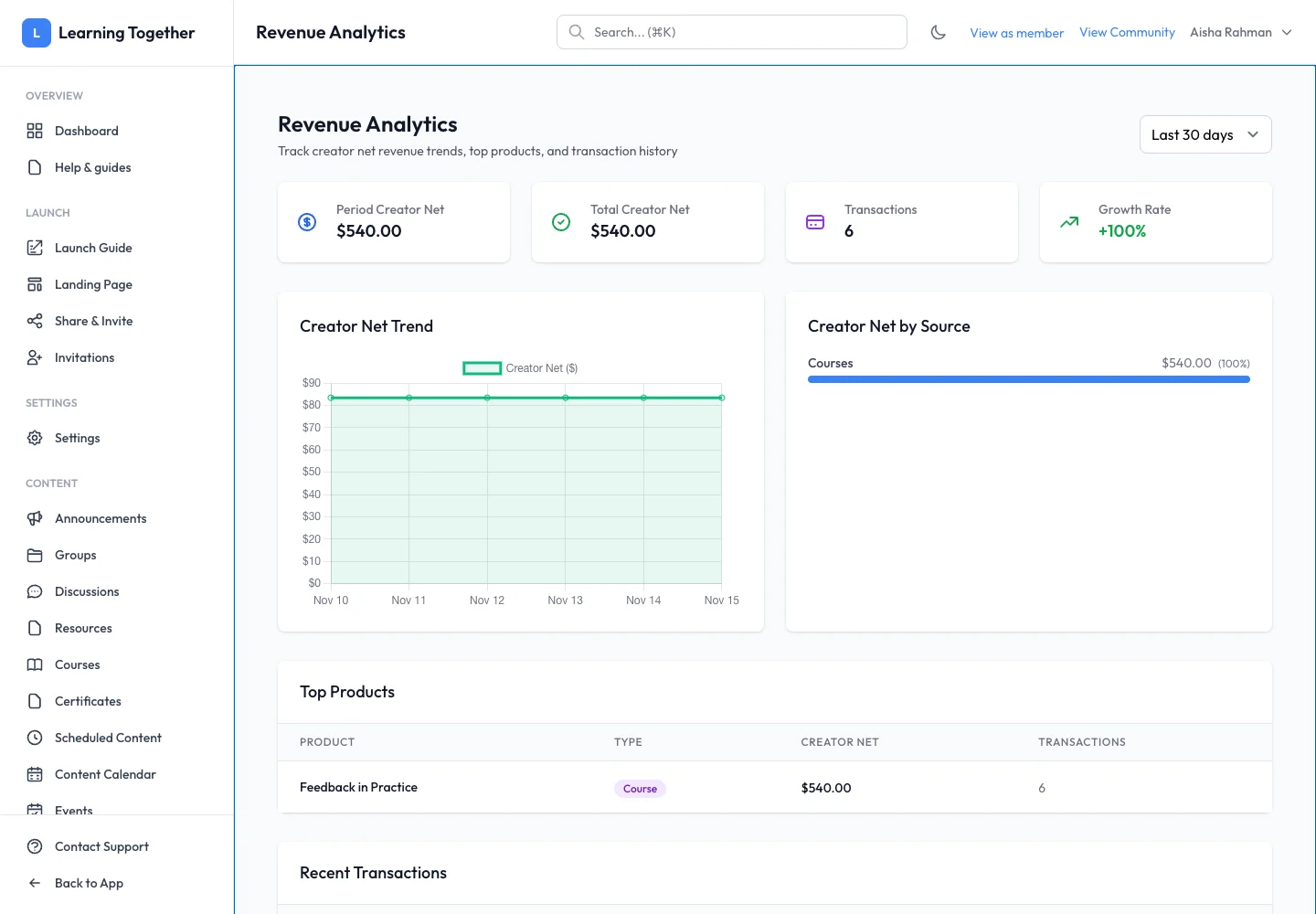
Choose Revenue in analytics. Set the available date range or filters. Read the labels on each total before comparing it with another report.
2. Inspect the trend and breakdown
Review the displayed revenue trend and purchase-type breakdown. Use them to understand which offers contributed to the period’s sales.
3. Reconcile an individual item
Open Transactions, apply the same period and locate the relevant payments. Compare gross, fees, creator net and refunds. Do not expect a gross-sales total to equal an available payout balance.
4. Check payouts separately
Open Payouts to review available/pending balances and request history. Inspect settlement information for questions about receipt. Keep references and the selected period when asking support about a mismatch.
Expected result
You can explain which recorded payments contribute to a report and why sales, net earnings and payouts may differ.
Troubleshooting
- Totals do not match: compare date ranges, currency, status and gross/net definitions.
- Refund changed the result: inspect its amount and current state in Transactions.
- Sales exist but no available payout: review pending balances and payout adjustments.
- No data: check whether completed payments fall inside the selected period.