
A course brings lessons into an ordered curriculum. Prepare its audience, pricing and completion rules before inviting learners.
Before you start
Use a paid community slot and a plan with course capacity. Create the group that will contain the course. A course’s group is required and cannot be changed after creation.
Steps
1. Create the course information
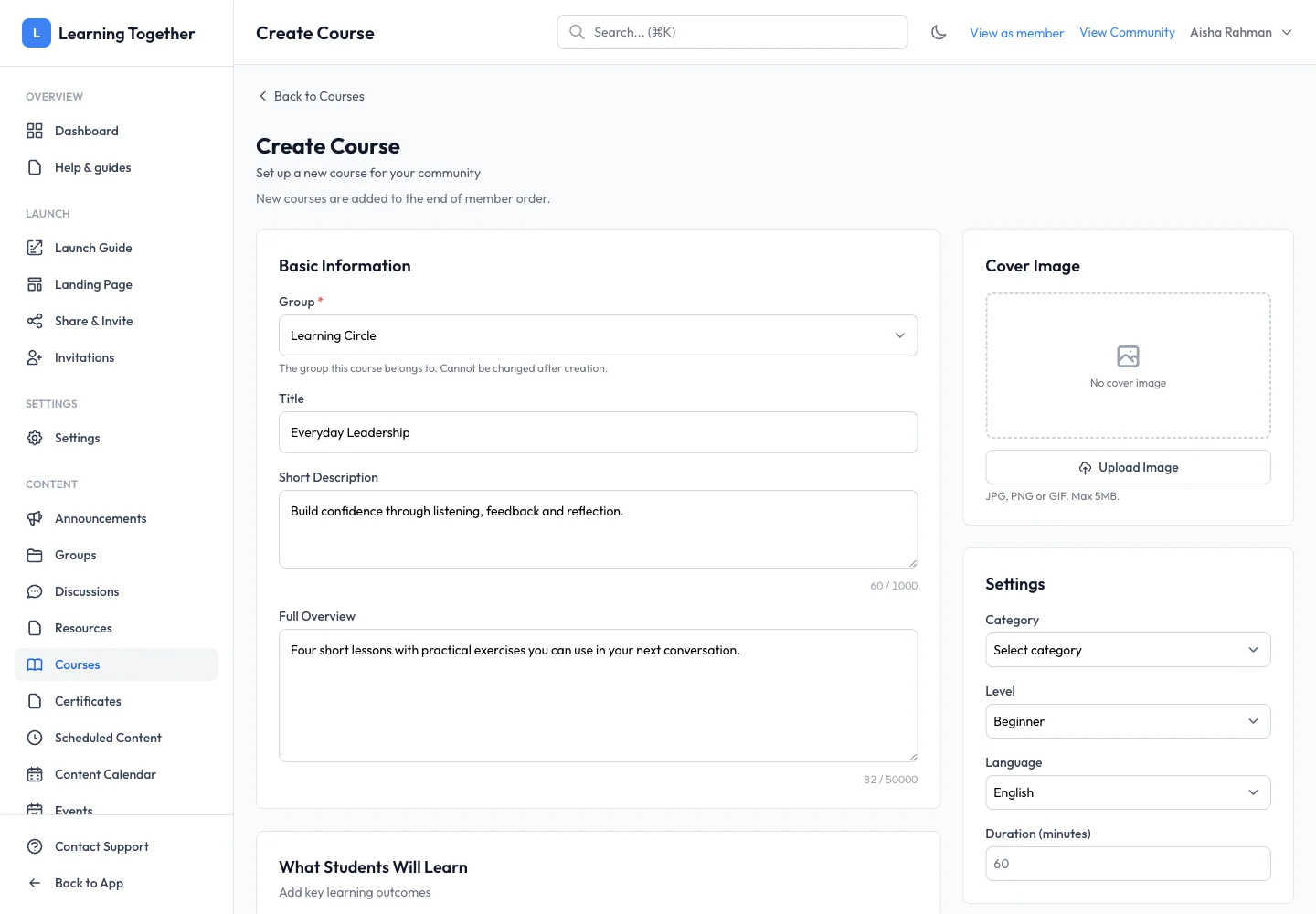
Open Courses → Create Course. Select Group, then enter Title, Short Description and Full Overview. Add learning outcomes and requirements with their Add controls. Upload a cover within the displayed limit if you have one.
2. Decide pricing and enrolment
Set category, level, language and duration. Leave price empty for free access or enter the appropriate price and currency. A course created as free cannot later be made paid. Review maximum students, access duration and approval. Blank access duration means lifetime access; later changes apply to new enrolments rather than rewriting existing expiry dates.
3. Save a draft
Choose Draft and Create Course while the curriculum is still being prepared. Use Edit Course Info from the curriculum to return to these settings.
4. Add sections and lessons
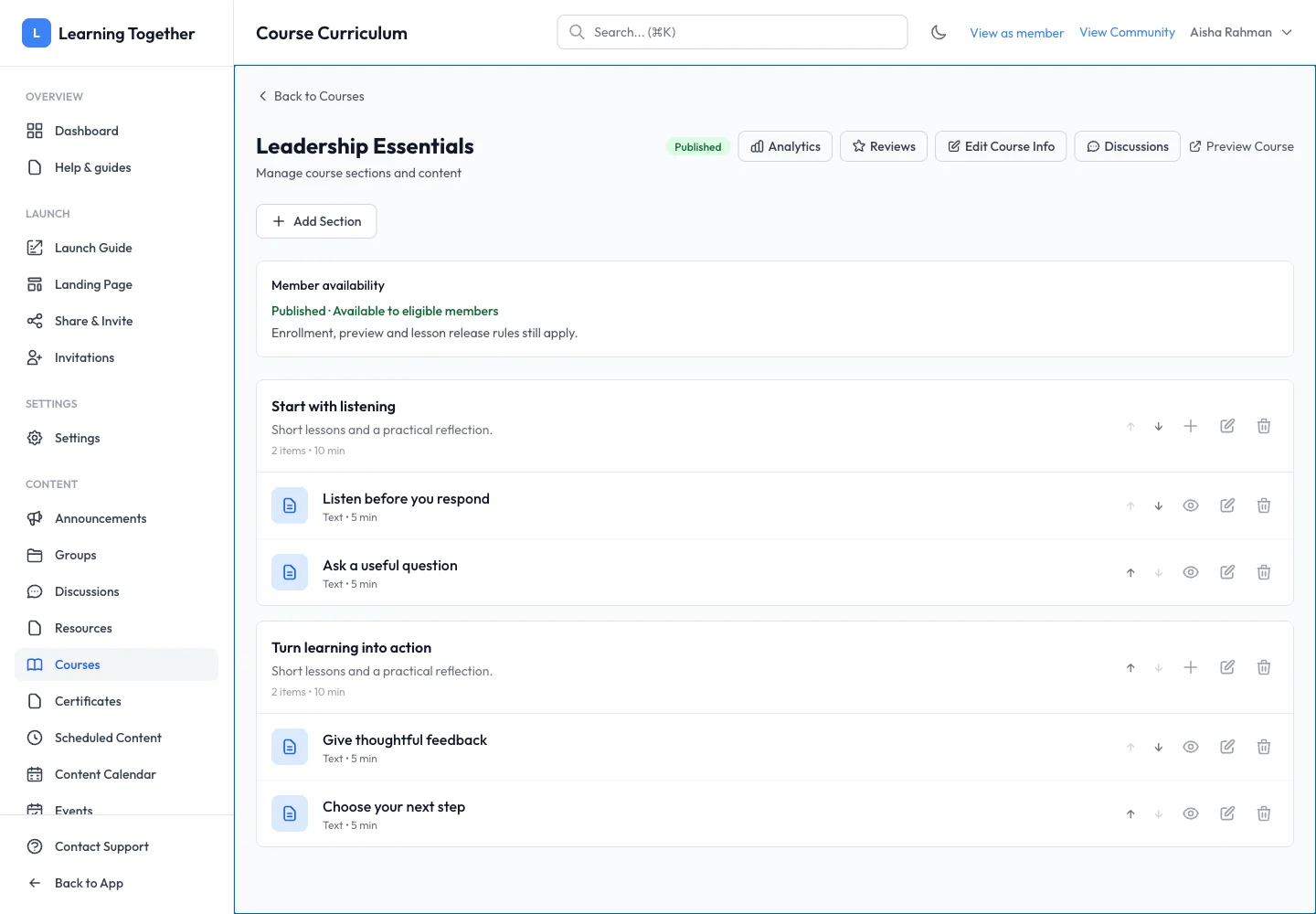
Choose Add Section, give the section a clear title, then add its lessons. Arrange them in the intended order. Use text, video, audio, document, HTML or quiz lessons as appropriate. Check required lessons and free-preview settings individually.
5. Preview, publish and check
Use Preview Course, then inspect the lesson experience. Return to Edit Course Info, select Publish now or Schedule, and Save Changes. Verify that the community and group are available too. A published course can still have enrolment, approval or release restrictions.
Expected result
Eligible members can see the published course, understand its offer and begin the intended curriculum after enrolling.
Troubleshooting
- Group cannot be changed: this is fixed at creation; check the audience before creating a replacement.
- Learners cannot enter: review community/group availability, enrolment and publication.
- Lessons locked: inspect sequential and drip-release settings.
- Course is visible but empty: add and save lessons before directing members to it.