
Announcements are suited to news and instructions members should be able to find again. Use a discussion when the main goal is an ongoing conversation.
Before you start
Open community management with announcement permission. Decide whether the update applies to everyone or one group.
Steps
1. Write the update
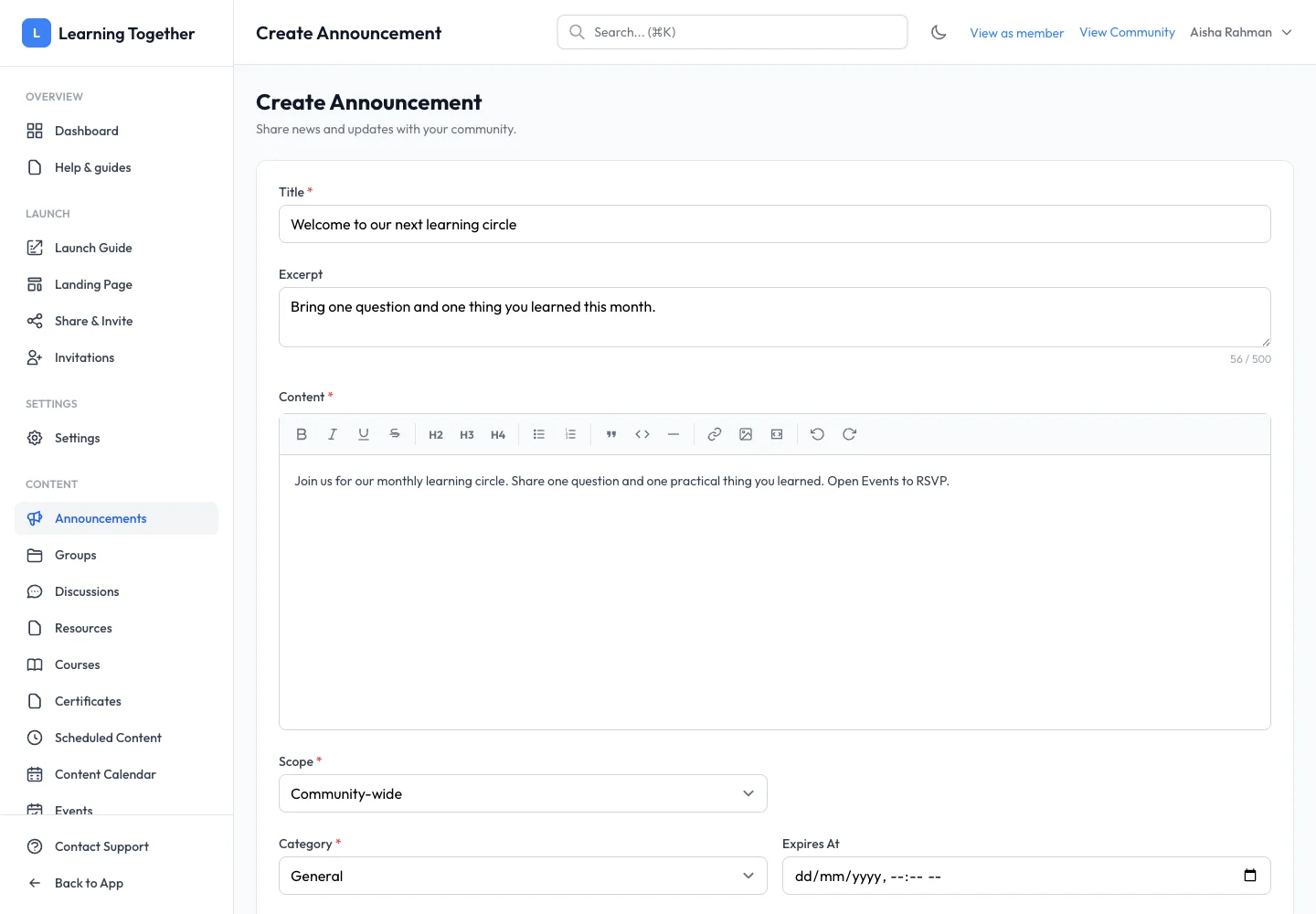
Open Announcements → Create Announcement. Enter Title, a short Excerpt and the main Content. Use headings and short paragraphs. State what members need to do and when.
2. Choose the audience
Set Scope to Community-wide or Group only. If group-only, select the correct group. Choose a category: Important, Update, Event or General. Check any expiry before using the update for long-term instructions.
3. Set participation and visibility
Use Pin to top for a high-priority update and choose whether to Allow comments. Select Draft, Schedule or Publish now. A schedule needs a future time and follows the timezone shown by the app.
4. Preview and save
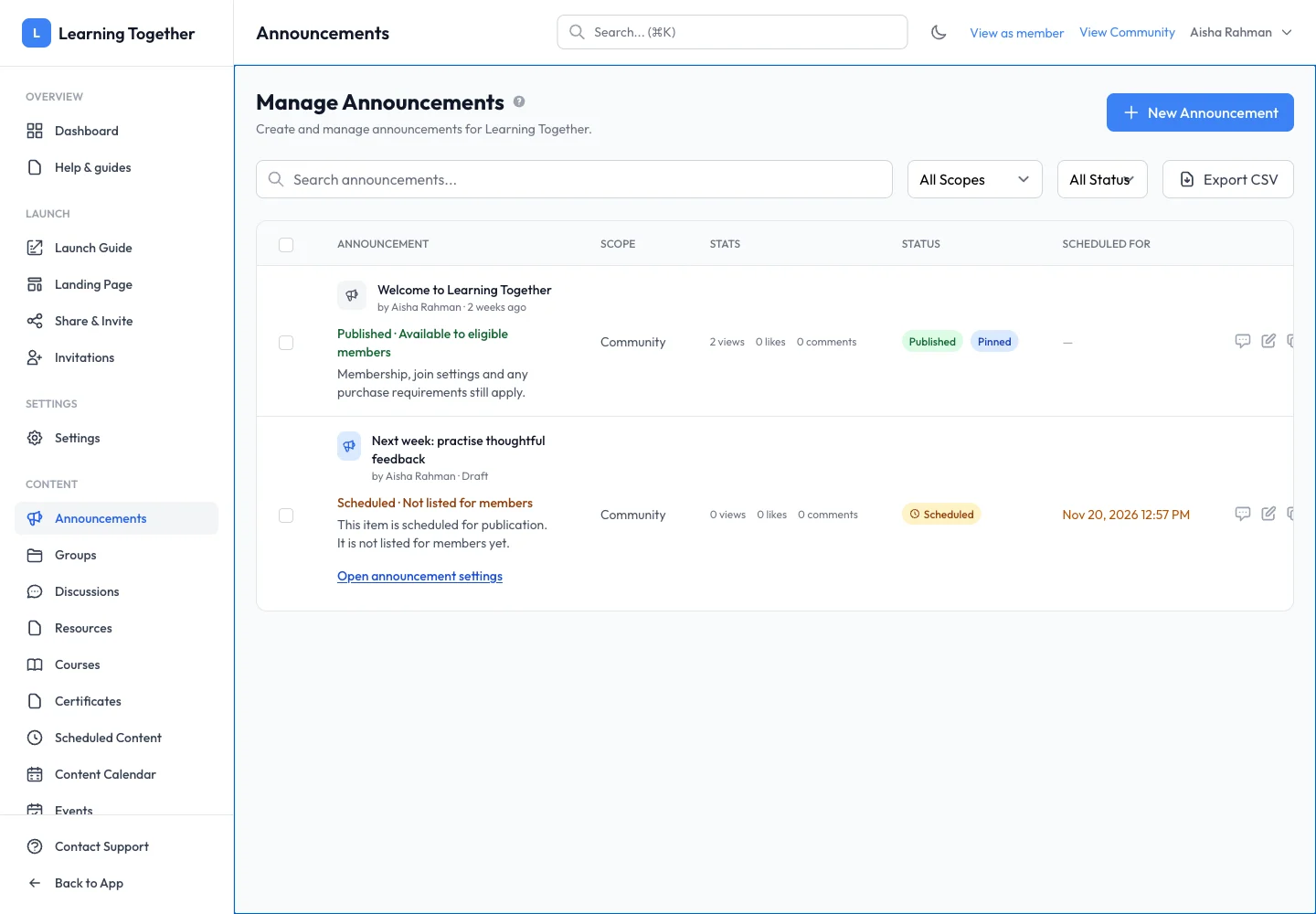
Choose Preview to inspect the text. Close the preview, correct anything unclear and select Create Announcement. Open the saved item in the list and check its state.
5. Verify the member view
Use View as member and open Announcements in the selected scope. Scheduled and draft announcements should not be treated as already published.
Expected result
The update is saved for the intended audience with the selected publication state.
Troubleshooting
- Members cannot see it: check scope, publication, expiry and group access.
- Schedule rejected: choose a future time in the displayed timezone.
- Too many pinned updates: keep only the most useful current instructions pinned.
- Comments unavailable: inspect Allow comments and the member’s access.