
Manual awards are useful for achievements that need an organiser’s judgment, such as a helpful contribution or participation in a special activity.
Before you start
Create an active badge and identify the members who should receive it. Review the description and XP bonus before awarding.
Steps
1. Open Award Badge
Choose Award Badge from management or the gamification overview. Review the available badge cards and select the intended badge.
2. Find the recipients
In Select Members, search for each member and select the correct account. Check names and emails where shown. Avoid selecting everyone merely because they appear in search results.
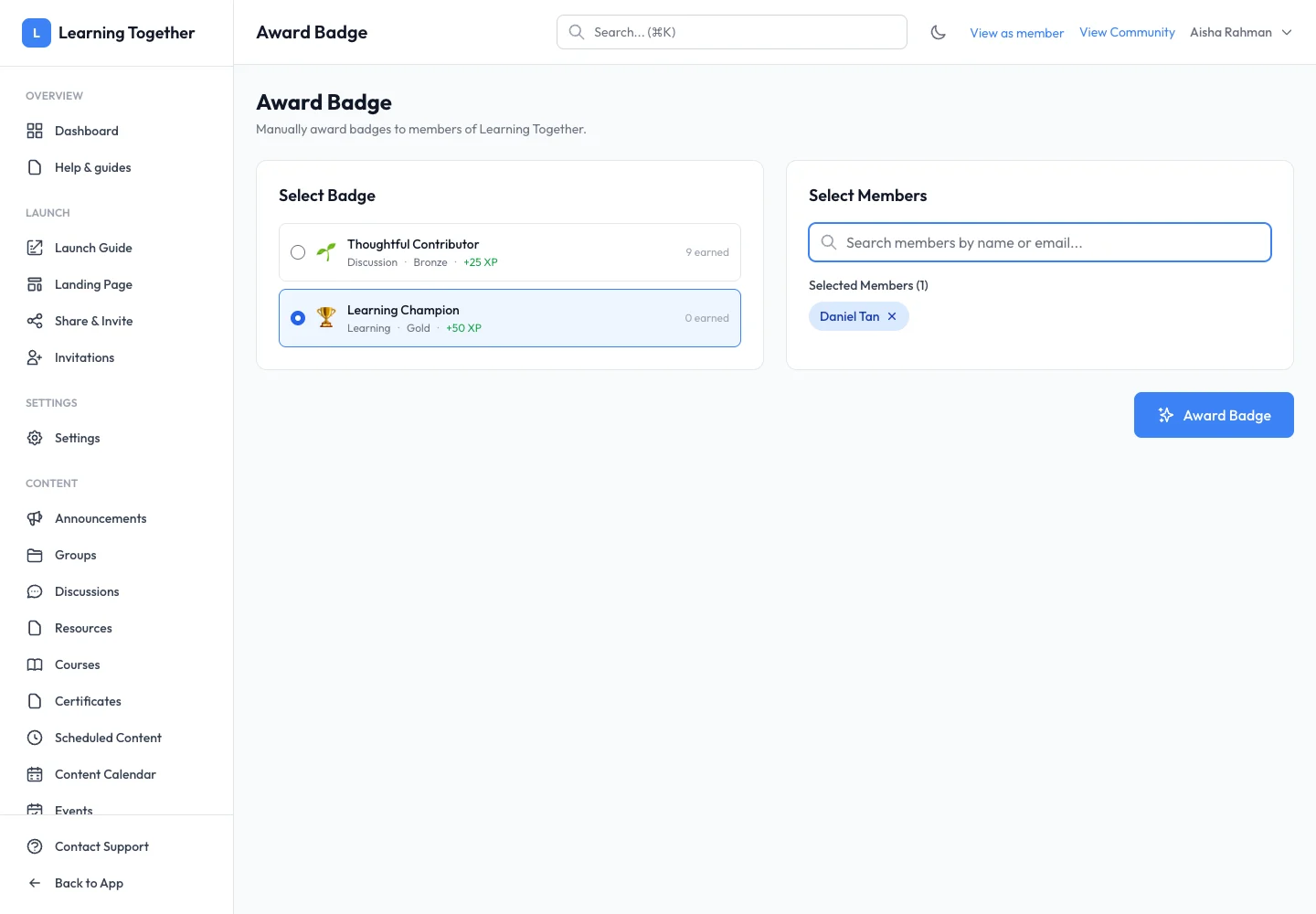
3. Review and award
Check the chosen badge, XP bonus and selected members, then select Award Badge. Wait for the result and read any message about existing awards or unavailable recipients.
4. Verify the result
Return to Badges or the member’s reward view and inspect the awarded count and badge state. Use a sample member account to check the Badge Catalog when testing the setup.
Expected result
Eligible selected members have the badge, and the award count reflects the successful action.
Troubleshooting
- Member not found: verify active community membership and the search spelling.
- Badge not available: inspect its Active state and your permission.
- Already earned: review the existing award rather than repeatedly submitting.
- Award count unexpected: compare the selected recipients with any messages returned by the action.