
Share a community with people who would benefit from it. Personal invitation links can credit the member who referred someone; creator tools provide a wider view of invitation activity.
Before you start
Check the community’s joining rules and that your role permits sharing. Do not publish a restricted invitation where unintended people can redeem it.
Steps
1. Get the correct link
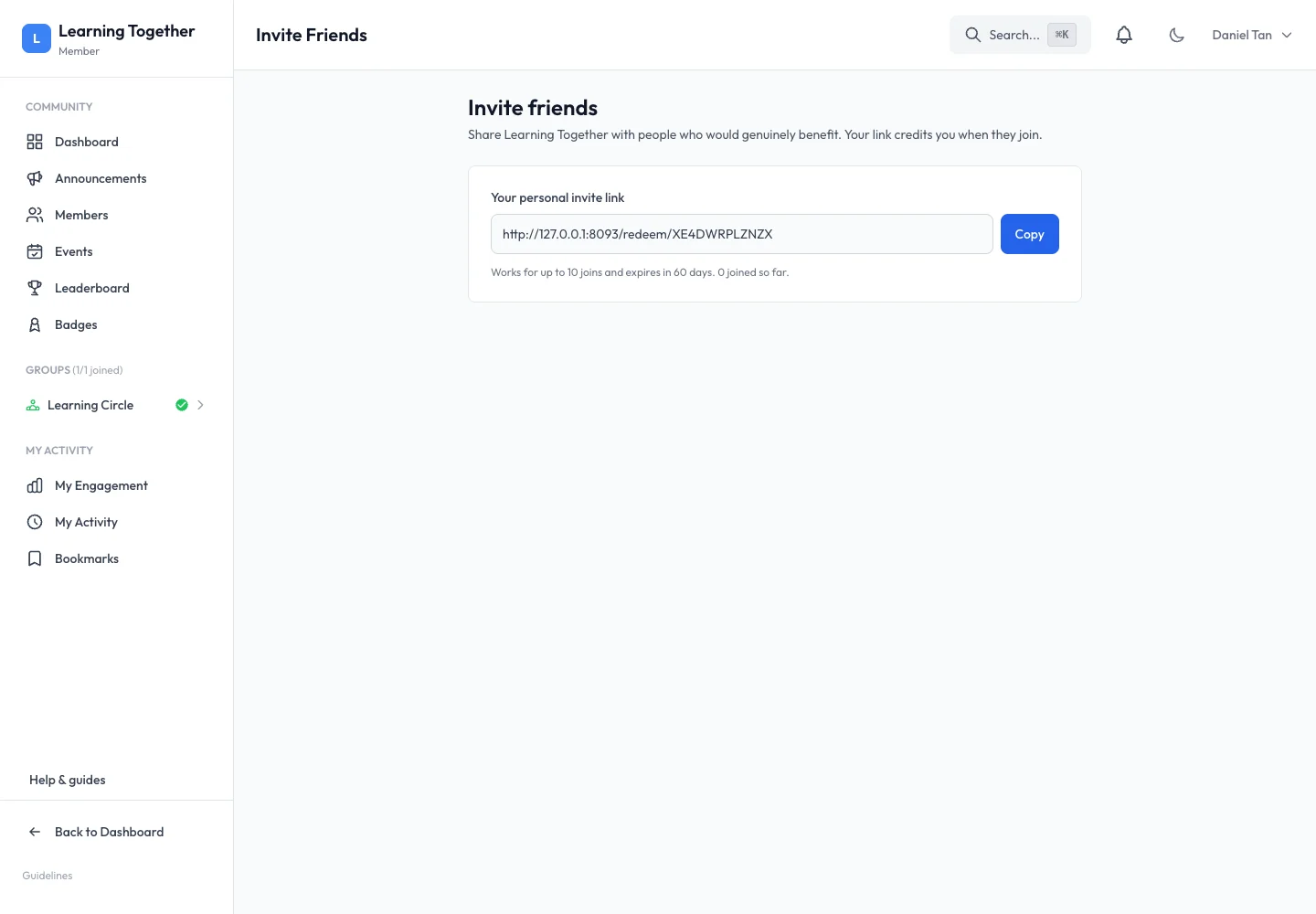
As a member, open Invite Friends and choose Get my invite link if one is not already shown. Read its use limit and expiry, then select Copy. As a creator, use Share & Invite or a deliberately configured invitation code.
2. Explain the invitation
Send a short explanation of what the community offers and what the recipient should do next. Make clear if a course or resource is sold separately. Share with people who want the invitation rather than sending indiscriminately.
3. Review growth as a creator
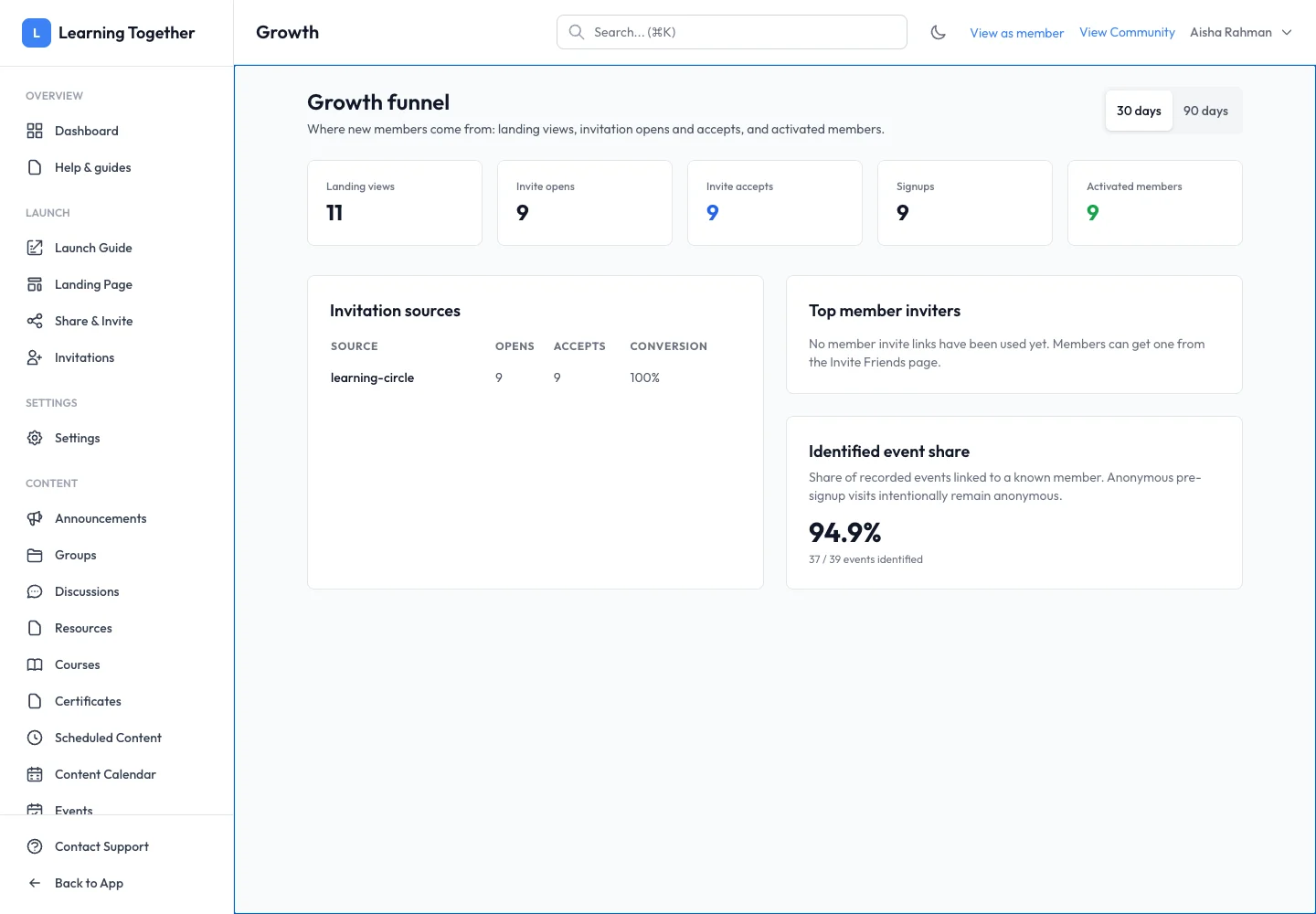
Open Growth in analytics. Choose 30 days or 90 days. Inspect landing views, invitation opens, invitation accepts, signups and activated members. Review invitation sources and top member inviters where data is available.
4. Interpret gaps carefully
A view is not a signup and an invitation open is not an accepted membership. Check the date window and source information before deciding a campaign failed. Anonymous activity intentionally remains anonymous until it can be associated with a known member.
Expected result
Recipients get a valid invitation and creators can inspect the recorded steps in the joining funnel.
Troubleshooting
- Link expired or fully used: get an eligible replacement through the available sharing controls.
- Invite Friends unavailable: the community may restrict this feature or your access.
- Counts do not match a mailing list: each metric measures a different action, not messages sent.
- No source data: check the selected period and whether tracked invitation activity occurred.