
Use one account for the communities you join and the communities you create. Your account email also identifies purchases, invitations and training attendance.
Before you start
Use an email address you can open. If a training organiser or creator invited a specific address, register with that address so Recqa can match the invitation.
Steps
1. Open registration
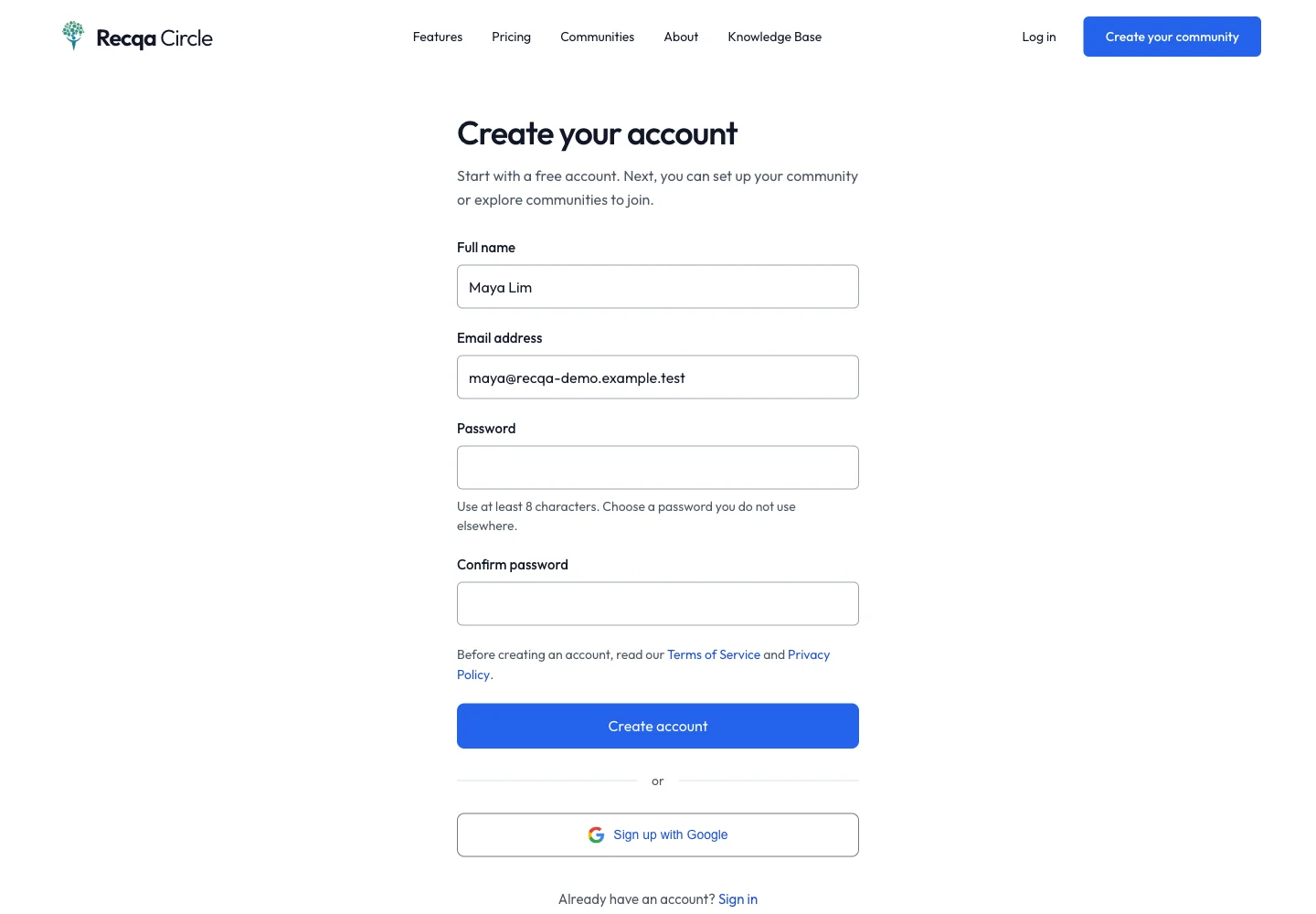
Open Create an account. Enter your name, email and a strong password, then complete the confirmation fields and terms shown on the form. Check the email spelling before submitting.
2. Confirm your email
Open the verification email and follow its link. Return to the browser where you signed in. If the verification screen offers a resend action, use it after checking spam and waiting briefly for delivery. Use the most recent message.
3. Complete onboarding
Follow the profile and interest prompts shown after registration. These help Recqa prepare your dashboard. An invitation or certificate link may return you to its original destination after account setup.
4. Sign in next time
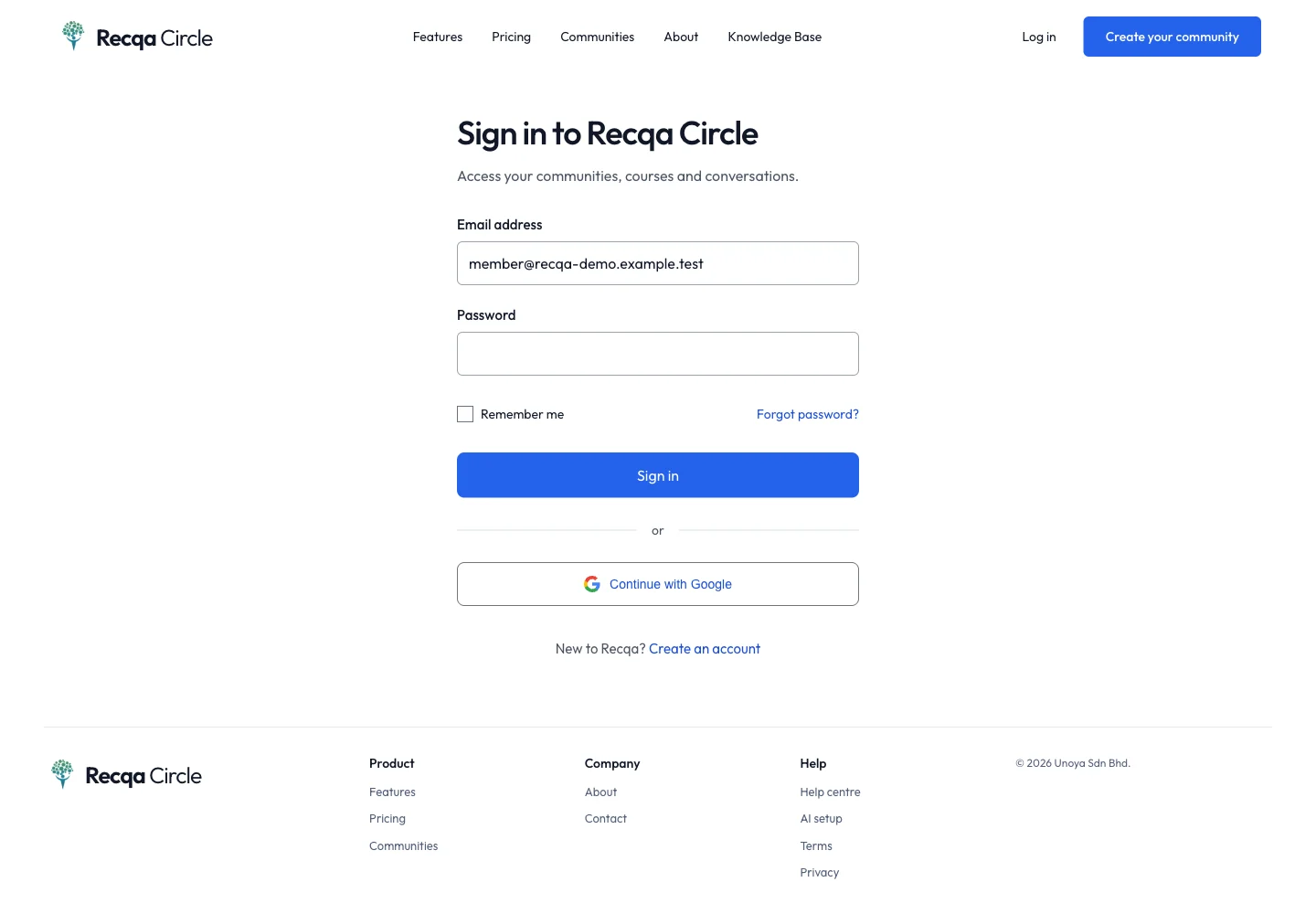
Open Log in, enter the same email and password and submit. Use Forgot your password? from the login form if you need a reset. Open the reset email and choose a new password; do not register a duplicate account to recover access.
Expected result
You reach your dashboard or the invitation you opened. Your account can be reused across communities.
Troubleshooting
- Email already registered: use login or password reset.
- Verification link expired: request a new link from the verification screen.
- Invitation does not match: sign out and use the invited address. Account email cannot be changed in Profile.
- Reset message missing: check the spelling and spam folder. Contact support if delivery still fails; never share your password.