
AI Q&A answers member questions using the sources you enable. Its settings are separate from the platform’s landing-page and certificate-generation modules.
Before you start
The platform must enable AI Q&A. Use an account with AI settings permission and obtain an authorised provider credential through your organisation’s normal process. Do not place API keys in community posts or screenshots.
Steps
1. Enable access deliberately
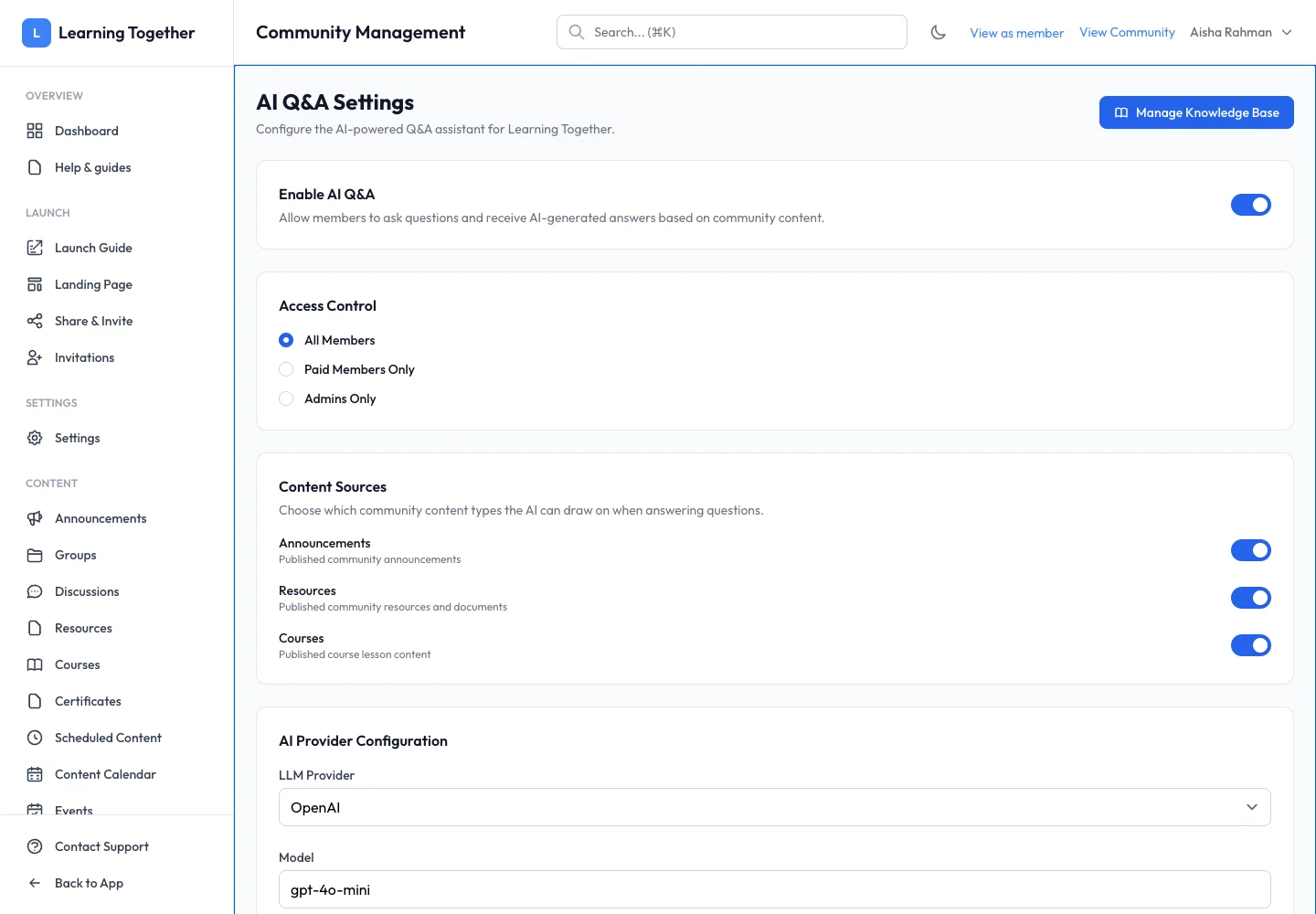
Open AI Q&A Settings. Choose Enable AI Q&A and an access level: All members, Paid members or Admins only. Start with the audience appropriate for your content and testing.
2. Select content sources
Choose which announcements, resources and courses should be indexed. Only include material you are authorised to process through the configured AI and embedding services.
3. Configure the language model
Select the provider and model, enter the key in the protected field and use Test Connection. Review the result before assuming the provider works. Set temperature and response limits only when you understand the effect; retain suitable defaults otherwise.
4. Configure embeddings and limits
Choose the supported embedding provider and its required settings. Platform CPU embeddings use the shared service; the screen describes their trade-offs. Set Monthly Token Limit and select Save Settings.
5. Check group settings
Open a group’s AI settings if it needs its own access or source choices. Group AI uses the community’s provider credential. Review Include Community-Wide Content and any group limit so the answer scope is deliberate.
Expected result
Settings are saved with the intended audience, sources and limits. A successful connection test and a relevant member question are still needed to verify your real provider setup.
Troubleshooting
- AI unavailable: check platform enablement, community enablement and member access.
- Connection fails: verify provider, model availability and credential permissions without exposing the key.
- No relevant answer: check indexing and source scope before changing the model.
- Limit reached: review Usage and adjust the approved limit if appropriate.