In-app alerts, email and device push are separate delivery choices. Turning off one channel does not automatically turn off the others.
Before you start
Sign in. For device push, use a supported browser and allow site notifications when prompted. Availability depends on site configuration and the device.
Steps
1. Read your alerts
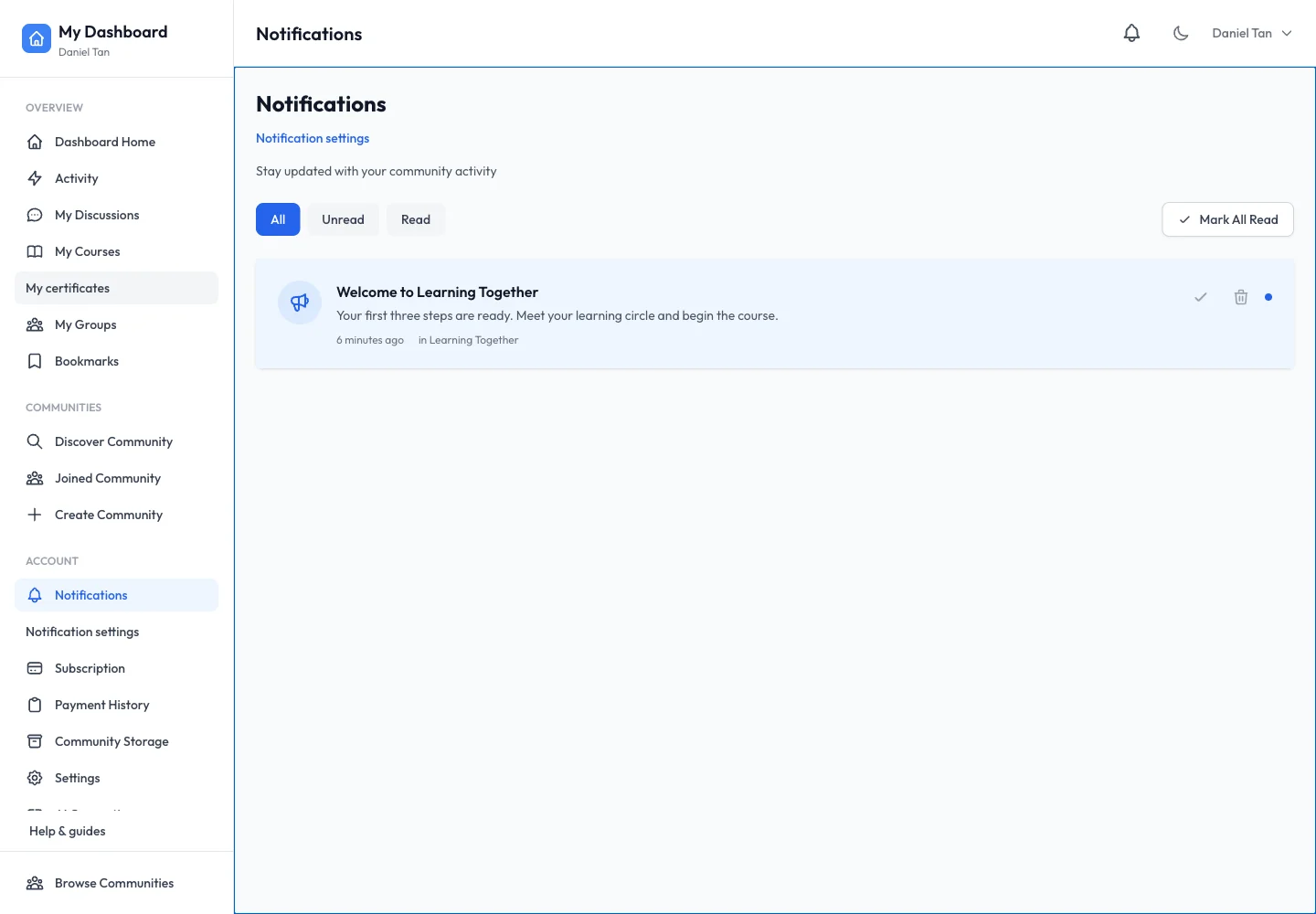
Open Notifications. Switch between All, Unread and Read. Open an alert to reach its content, or choose Mark All Read after reviewing the list.
2. Choose in-app and email categories
Open Notification settings. Set the in-app switches for discussion, content, course, group, community and gamification activity. In the email area, choose individual events or use Enable All / Disable All. Save with Save Preferences at the bottom.
3. Set a digest
Under Email Digest, choose Daily, Weekly or Disabled. Set the time and Digest timezone, using a value such as Asia/Kuala_Lumpur. For a weekly digest, also choose the weekday. Save Preferences. The digest groups eligible email notifications; in-app alerts remain immediate.
4. Enable this device if you want push
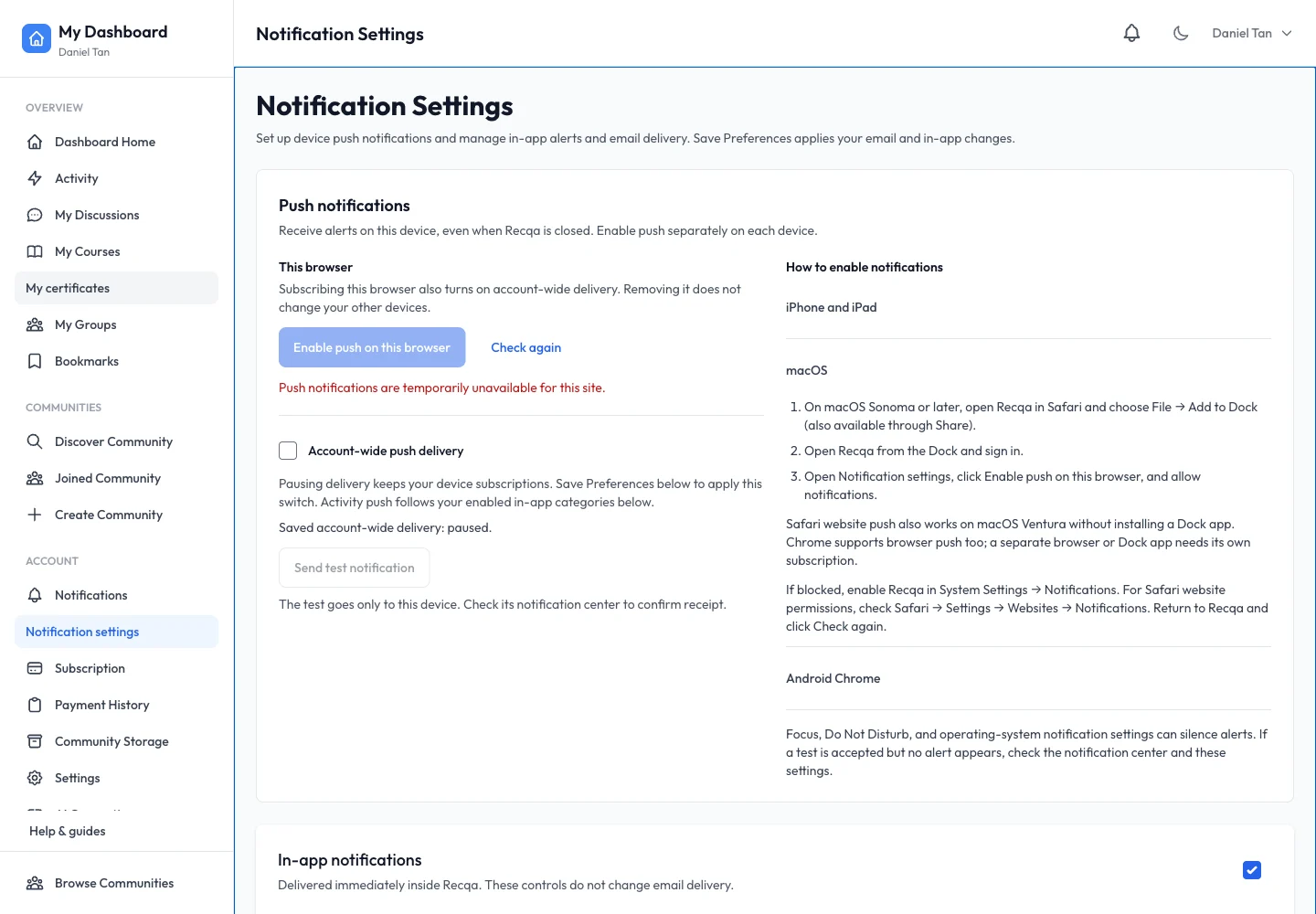
Choose Enable push on this browser, then allow the browser prompt. Use Check again after changing browser permissions. Account-wide push delivery can be paused without removing other device subscriptions. Save the preference and use Send test notification to check this device’s notification centre.
Expected result
Your saved categories and digest schedule remain selected when you return. Push is subscribed separately on each device.
Troubleshooting
- Push temporarily unavailable: the site may not have push enabled; email and in-app settings still work.
- Test accepted but no banner: inspect the notification centre, Focus/Do Not Disturb and OS permissions.
- Digest arrives at an unexpected hour: check its timezone as well as the time.
- An alert links to unavailable content: the item may have been removed or your access may have changed.