
Issued certificates keep their original design and details. Editing a template or session does not silently rewrite documents already issued.
Before you start
Open the training session with certificate-management permission. Confirm the recipient and reason for the requested change.
Steps
1. Find the issued document
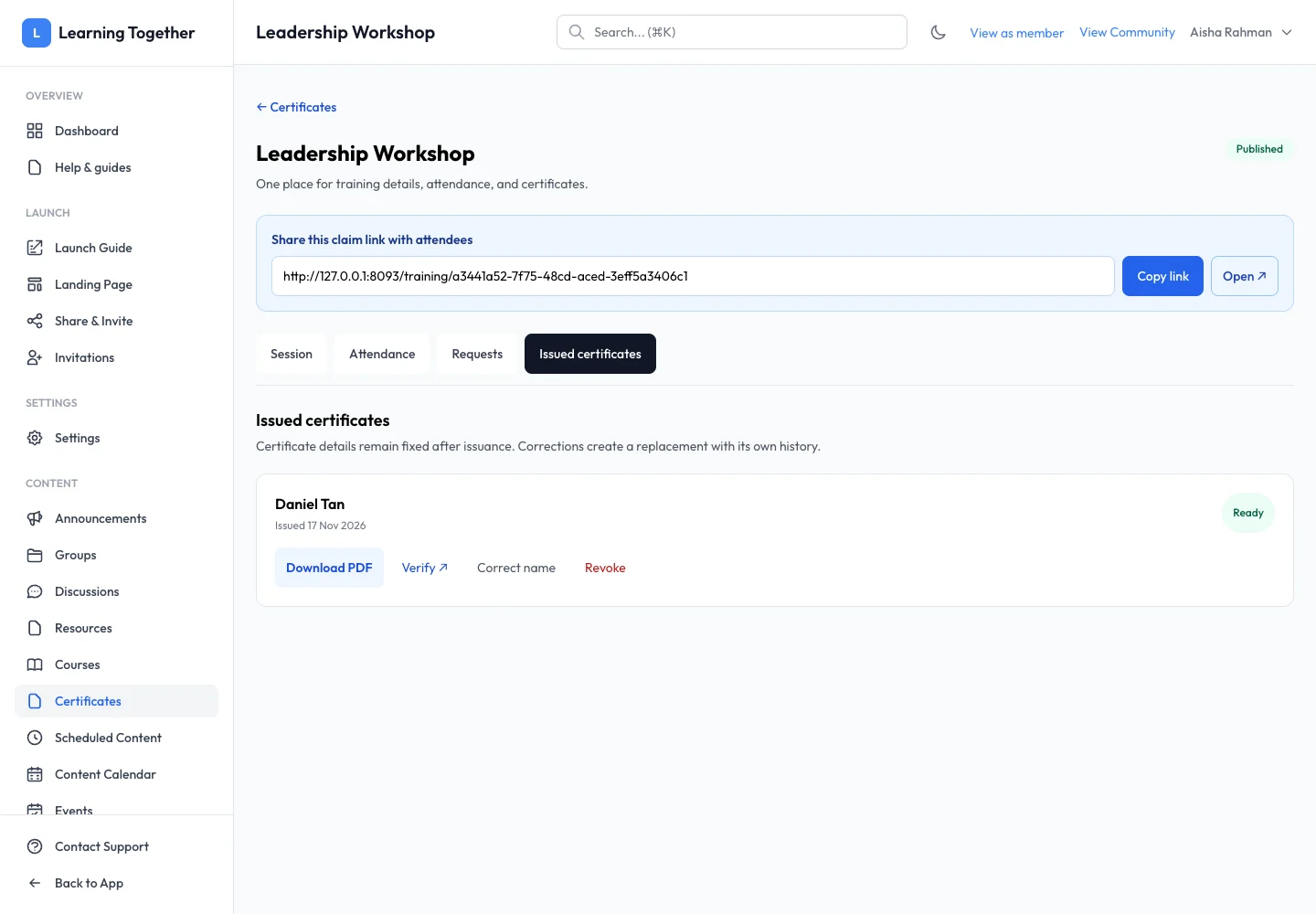
Open Issued certificates in the session. Match the recipient and issue date. Check whether generation is Ready, still processing or failed.
2. Download and verify
Use Download PDF to inspect the actual document. Check name, training, date, signatory and logo. Open Verify to inspect its public validity information. Share verification rather than private account information when someone needs to check authenticity.
3. Correct a printed name
Choose Correct name, enter the approved spelling and follow the confirmation. The correction creates a replacement with its own history; it does not overwrite the original certificate without a record. Download the replacement when ready and tell the recipient which document to use.
4. Revoke when necessary
Choose Revoke only for the intended document. Enter the required reason and confirm. Reopen verification to confirm the current status. Revocation does not erase copies that someone already downloaded; verification communicates their status.
Expected result
The certificate’s history reflects the change, and verification shows whether the current document is valid or revoked.
Troubleshooting
- Template changed but PDF did not: issued snapshots are intentionally fixed.
- Correction still processing: wait for generation and use the available retry on failure.
- Wrong recipient selected: cancel the confirmation and locate the correct issue record.
- Old download still exists: direct the recipient to the replacement and its verification result.