
Your course progress belongs to the account you used to enrol. Use the same account when returning from another device.
Before you start
Join the required community and group. Review the course description, requirements, price and access duration before enrolling.
Steps
1. Open the course
Browse Courses in the relevant group and open the course title. Read its overview and learning outcomes. Complete the displayed enrolment, approval or payment step. Free-preview lessons may be available before full access.
2. Begin or continue learning
Open My Courses and select Continue, or use Continue Learning on the course. Choose a lesson in the curriculum. Completed lessons and progress help you see where you stopped.
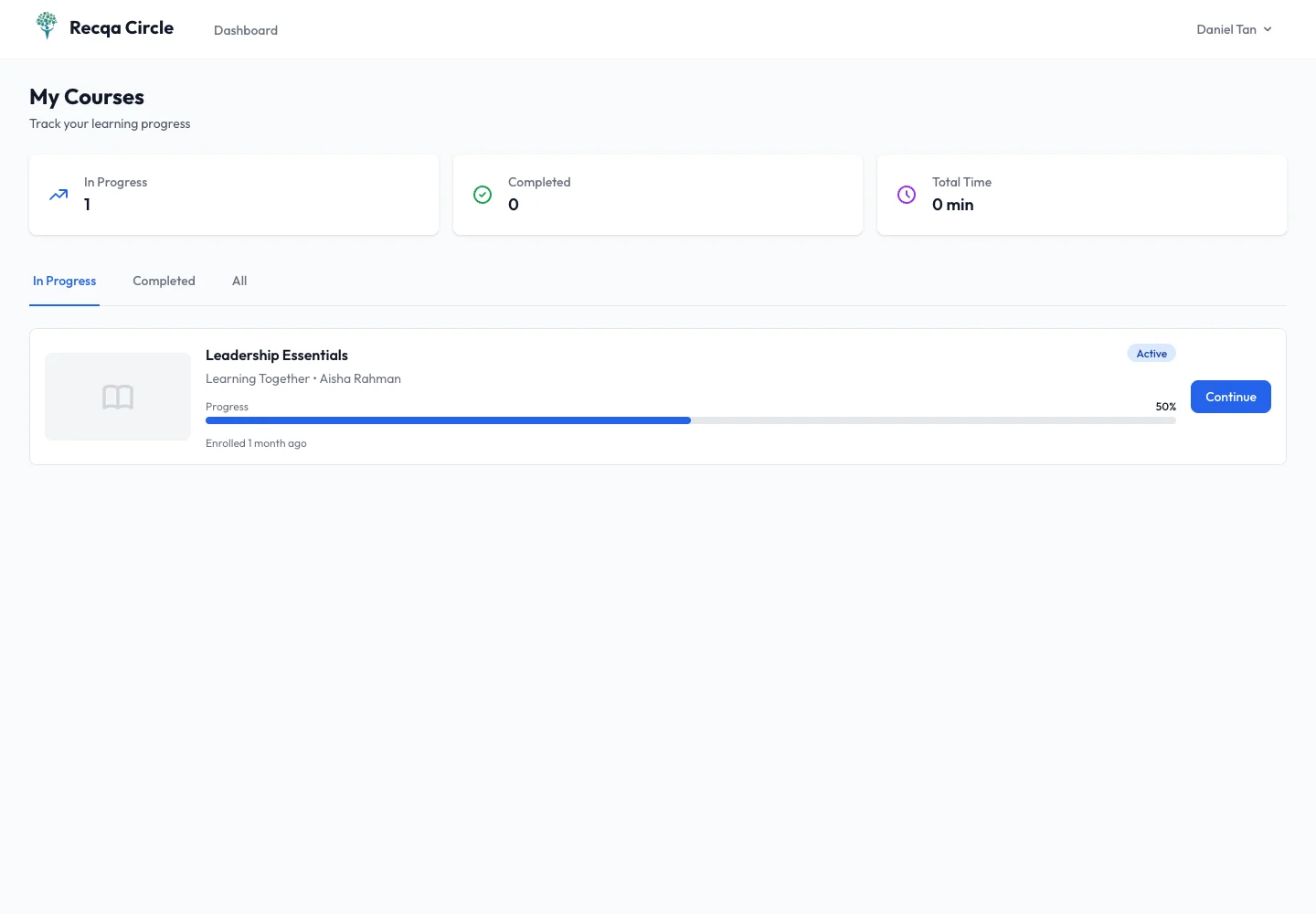
3. Complete the lesson activity
Read the text, play the media or download the file. Follow the lesson’s exercise and use its completion control when finished. For quizzes, answer the questions and submit; review the feedback before continuing.
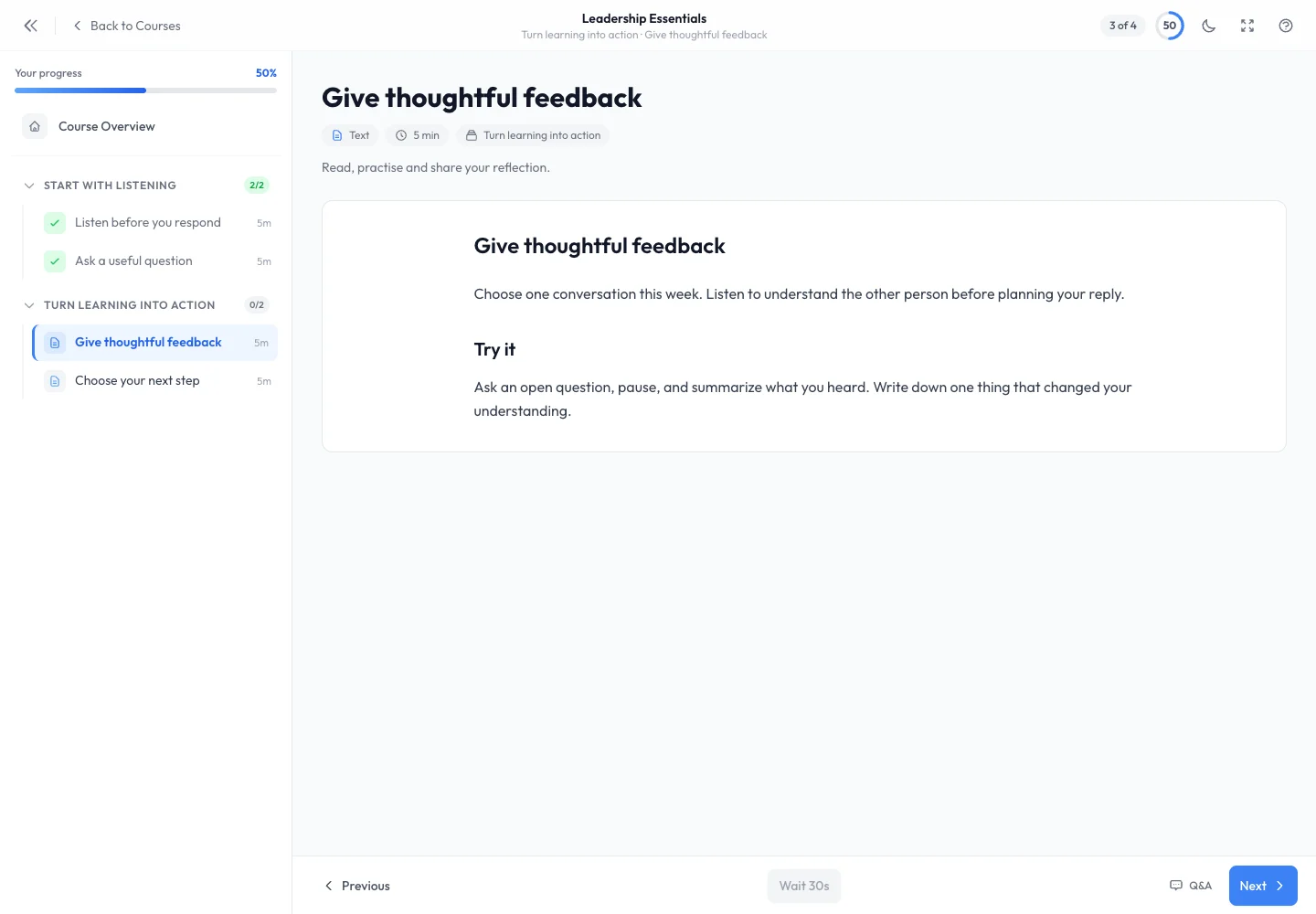
4. Follow release and completion rules
If a lesson is locked, check whether an earlier required lesson or a release date is blocking it. Work through required items in order where sequential completion is enabled. Use course Discussions when enabled to ask a specific question about the lesson.
5. Check the outcome
Return to the overview and confirm progress. When all requirements are met, use the completion-certificate action if the creator enabled it. Leave a useful review when the course offers that option.
Expected result
Completed lessons are recorded and the course reflects your progress. Available completion certificates can be downloaded after the required work is finished.
Troubleshooting
- Progress did not update: use the completion or quiz submission action and wait for its result.
- Lesson locked: check sequence, release date, approval and access expiry.
- Course missing: confirm the account and enrolment status.
- No certificate: certificates are optional and depend on the course’s configuration and completion requirements.