
Use the member list to manage community access. Community roles and group roles are separate, so inspect both when someone needs help with a specific group.
Before you start
Open management with member-management permission. Know the person’s account email and the access change they need. Grant administrative roles only to people who should manage community content and settings.
Steps
1. Find the member
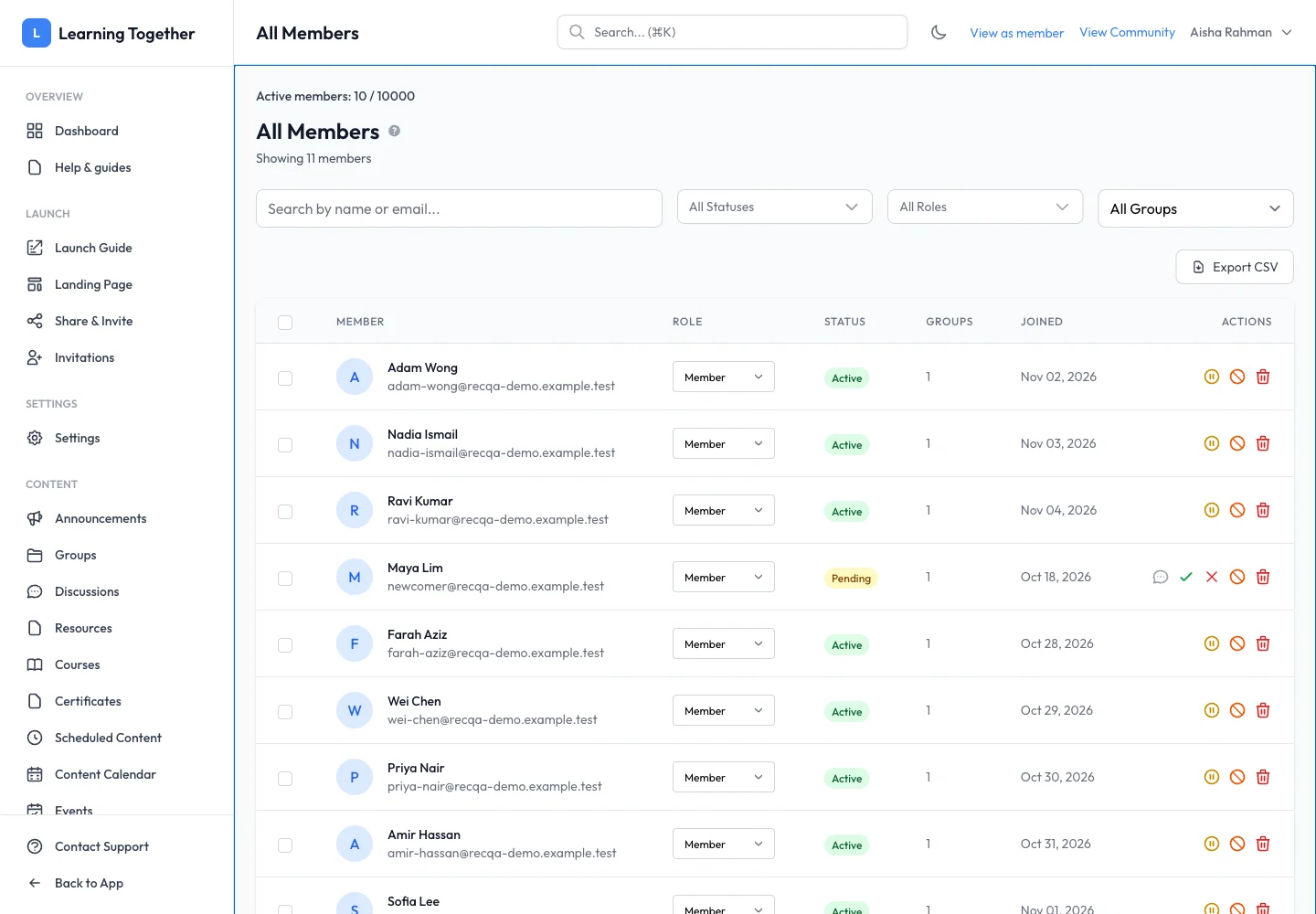
Open Members. Search for the person and narrow the list with Status, Roles or Groups. Check their name and email together before taking an action.
2. Review pending access
Filter to pending members. Inspect the request and use the relevant row action to approve or reject it. Read any confirmation before proceeding. After approval, check that the status becomes Active.
3. Set the role
Use the role selector for a member you are allowed to manage. Choose Admin, Moderator or Member according to their responsibilities. The Owner is shown separately and is not a normal role dropdown change.
4. Manage ongoing access
Use the member’s available actions for access changes. Read the confirmation and its effect before suspending or removing someone. Removing access does not itself refund a payment or erase all shared content.
5. Export when needed
Set the filters you need and choose Export CSV. Handle the export as member information and share it only with people who need it for community administration.
Expected result
The member has the intended status and role. Group-specific access is checked in the relevant group’s member list.
Troubleshooting
- Member missing: clear filters and check for a different account email.
- Community access works but group does not: review the group’s membership and approval rules.
- Role selector unavailable: your own role may not permit the change.
- Paid member asks for a refund: review Transactions separately; membership actions and payment actions serve different purposes.