
A useful quiz checks the learning outcome and explains mistakes. Start with a few clear questions rather than a large question bank without feedback.
Before you start
Create the course section and draft the questions and correct answers. Decide whether the quiz is required for course completion.
Steps
1. Add quiz details
In the section, choose quiz content. Enter Title, Description and estimated duration. State what the learner should do and choose Required for completion where appropriate.
2. Add a question
Select Add Question. Choose the supported question type and write the question. For a choice question, enter meaningful options and select the correct answer. For a text-answer type, follow the accepted-answer format shown by the editor.
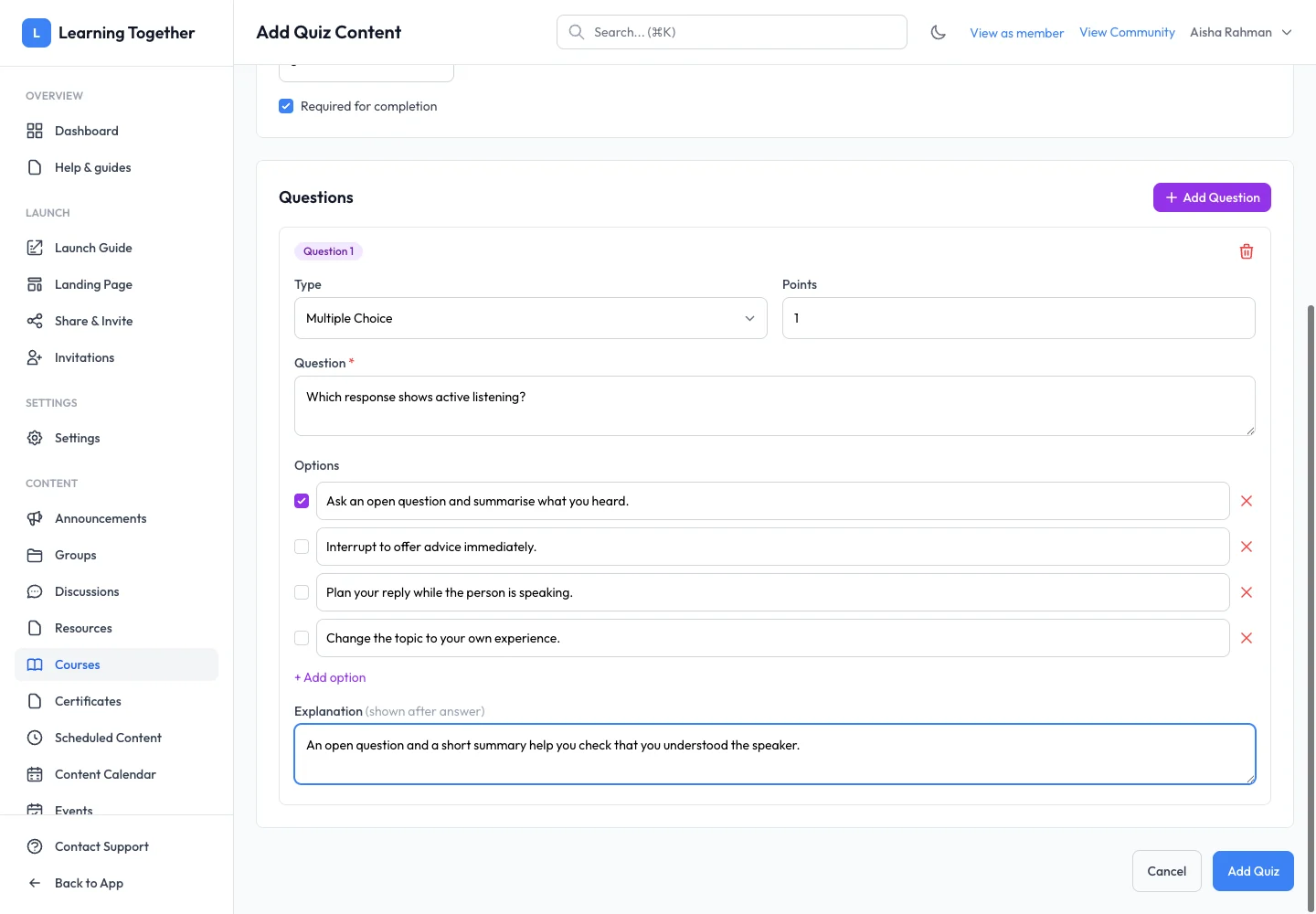
3. Explain the answer
Use the explanation field to tell learners why the correct response works. Check that incorrect options are plausible but unambiguous. Add further questions and review their order.
4. Save and attempt the quiz
Select Add Quiz. Open the course player and attempt the saved quiz using a learner account. Submit answers and inspect the displayed feedback and completion state. Test at least one incorrect answer when checking the explanation.
Expected result
Learners can complete the quiz and receive feedback according to its configuration. Required quizzes contribute to the course’s completion requirements.
Troubleshooting
- Quiz will not save: check empty questions, missing options and correct-answer selections.
- Answer unexpectedly marked wrong: inspect the configured answer and any accepted text variants.
- No questions appear: add and save questions; a title alone is not a complete quiz.
- Course remains incomplete: check other required lessons and the quiz’s completion result.