
Transactions explain what a member paid and what was attributed to the creator after fees. The examples in this guide are synthetic and do not represent real money movements.
Before you start
Open community management with payment permission. Have the member email or transaction reference and confirm the community whose sale you are reviewing.
Steps
1. Find the transaction
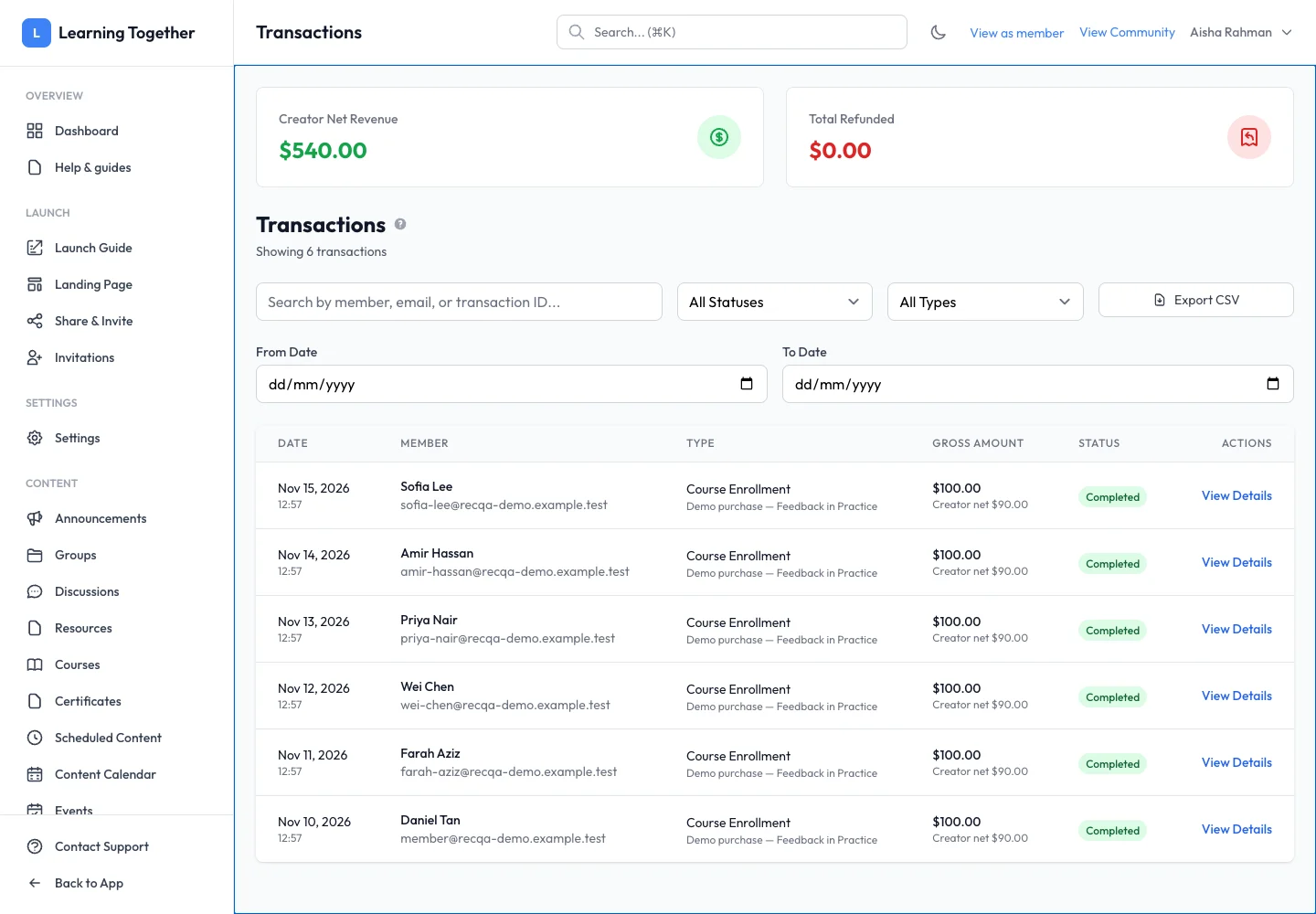
Open Transactions. Filter by status, type and date range. Match the member, item, amount and date before opening View Details.
2. Read the payment state
Inspect Pending, Processing, Completed, Failed or refund states as shown. Compare gross amount, fees, net amount and any amount already refunded. A transaction row and a payout request are different stages.
3. Review a refund request
Open the transaction’s available refund controls if your role permits them. Read the refundable amount and confirmation carefully. Enter the reason and intended amount where requested, then confirm only the specific action you intend. If no refund control is available, contact platform support with the payment reference.
4. Check the result and access separately
Reopen the transaction and confirm the updated status and refunded amount. Review the member’s course or membership access separately; do not assume a refund action and an access-removal action are interchangeable.
5. Export the relevant view
Choose the intended filters, then Export CSV. Treat the export as member and transaction information and keep it within your authorised team.
Expected result
You can explain the payment and any refund state using the recorded details, without confusing it with a completed payout.
Troubleshooting
- Refund action unavailable: check permissions and the payment’s eligibility/status.
- Net differs from gross: inspect the recorded fees and refund amounts.
- Transaction not found: clear filters and confirm the purchased item’s community.
- Refund remains processing: inspect the result before submitting another action and contact support with the reference.