
Use the claim link supplied by your training organiser. Your verified account email is used to check attendance, and the name you enter is printed on the certificate.
Before you start
Have access to the email used for attendance. If the session is Members only, complete onboarding and join the community with an active membership first.
Steps
1. Open the training link
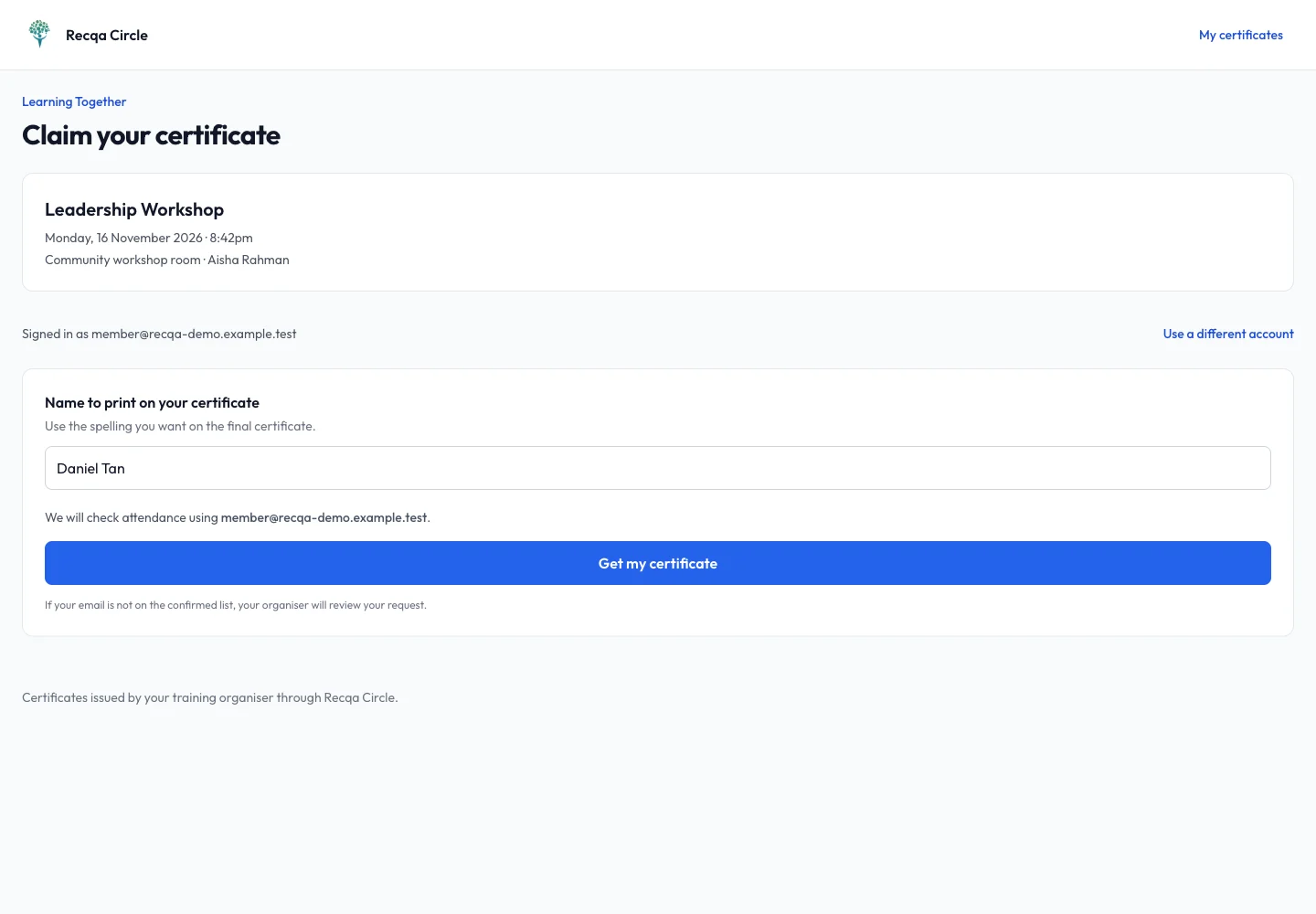
Confirm the training title, date, venue and organiser. Sign in or create an account when prompted, then complete email verification. If the wrong account is shown, use Use a different account.
2. Check the printed name
Enter Name to print on your certificate using the spelling you want on the final PDF. Check the email shown below it; changing the printed name does not change the attendance email.
3. Request the certificate
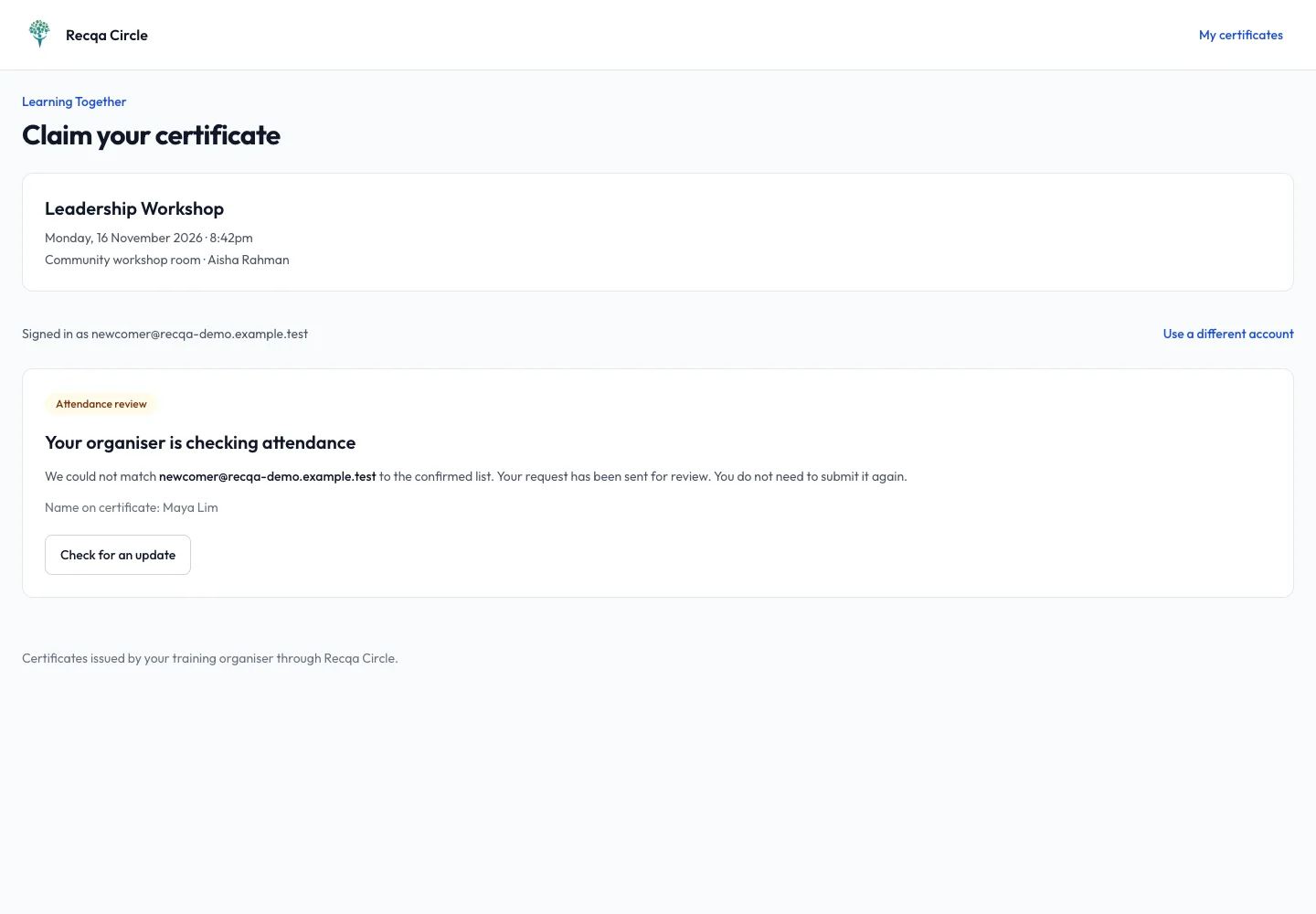
Choose Get my certificate. Wait for the result. Matching confirmed attendance can proceed to generation. If attendance does not match, the organiser receives your request for review; you do not need to submit it repeatedly.
4. Download and verify
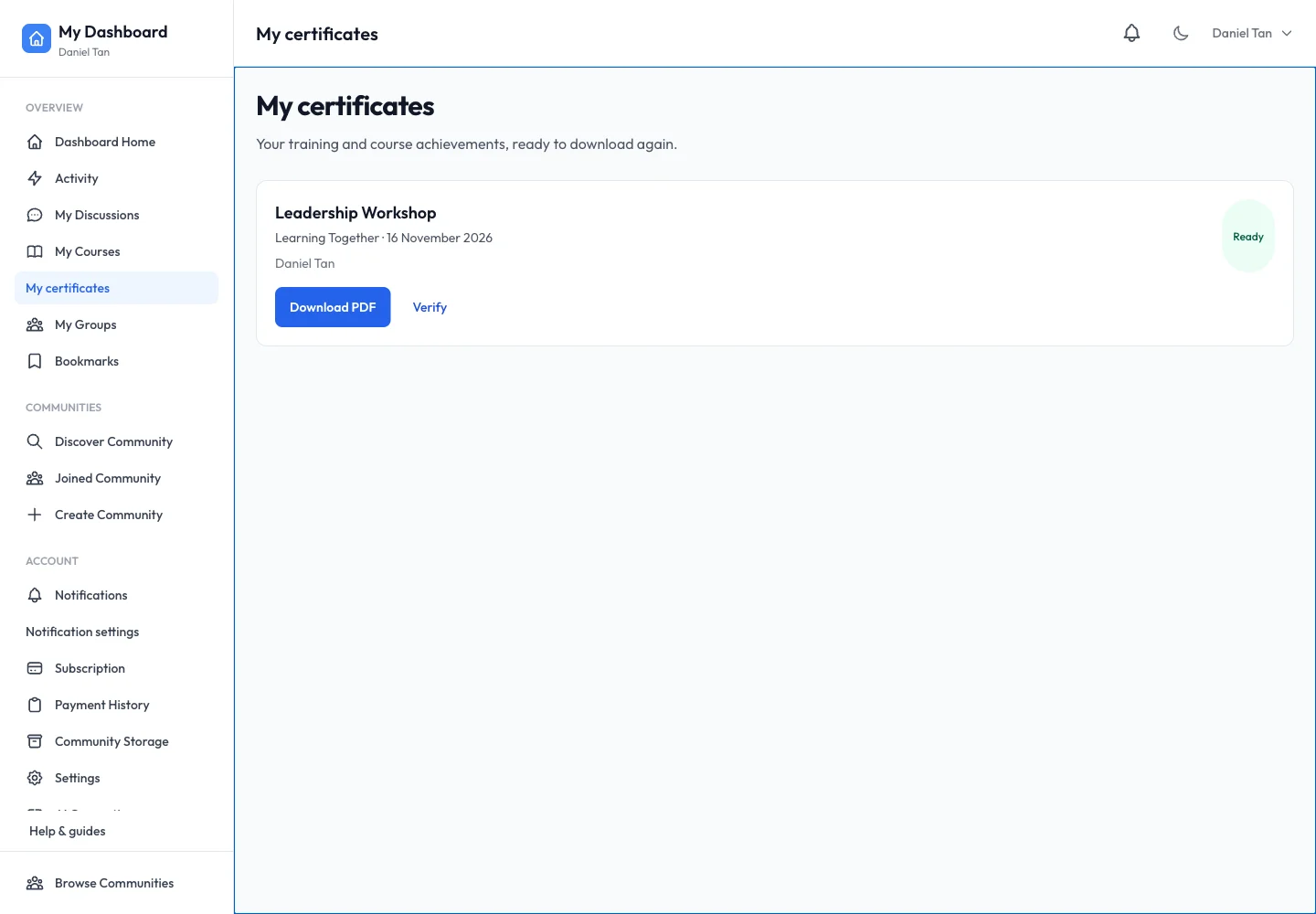
When the certificate is Ready, choose Download PDF. Open My certificates later to download it again. Use Verify or the PDF’s verification code/QR to check the certificate’s current validity.
Expected result
You receive a ready PDF or a clear attendance-review status. The downloaded certificate uses the approved participant and session details.
Troubleshooting
- Wrong email shown: switch accounts rather than repeatedly submitting the same claim.
- Waiting for review: contact the organiser with the training title and the email used to claim.
- PDF generation failed: use Retry if offered and report a persistent failure to the organiser.
- Name is wrong: ask the organiser to correct it; issued documents have their own history.