
The owner’s subscription provides creator features and capacity. A member joining a community is not automatically buying the owner’s subscription plan.
Before you start
Sign in as the community owner. Review your current communities, groups, members and storage before changing to a smaller plan.
Steps
1. Open Subscription
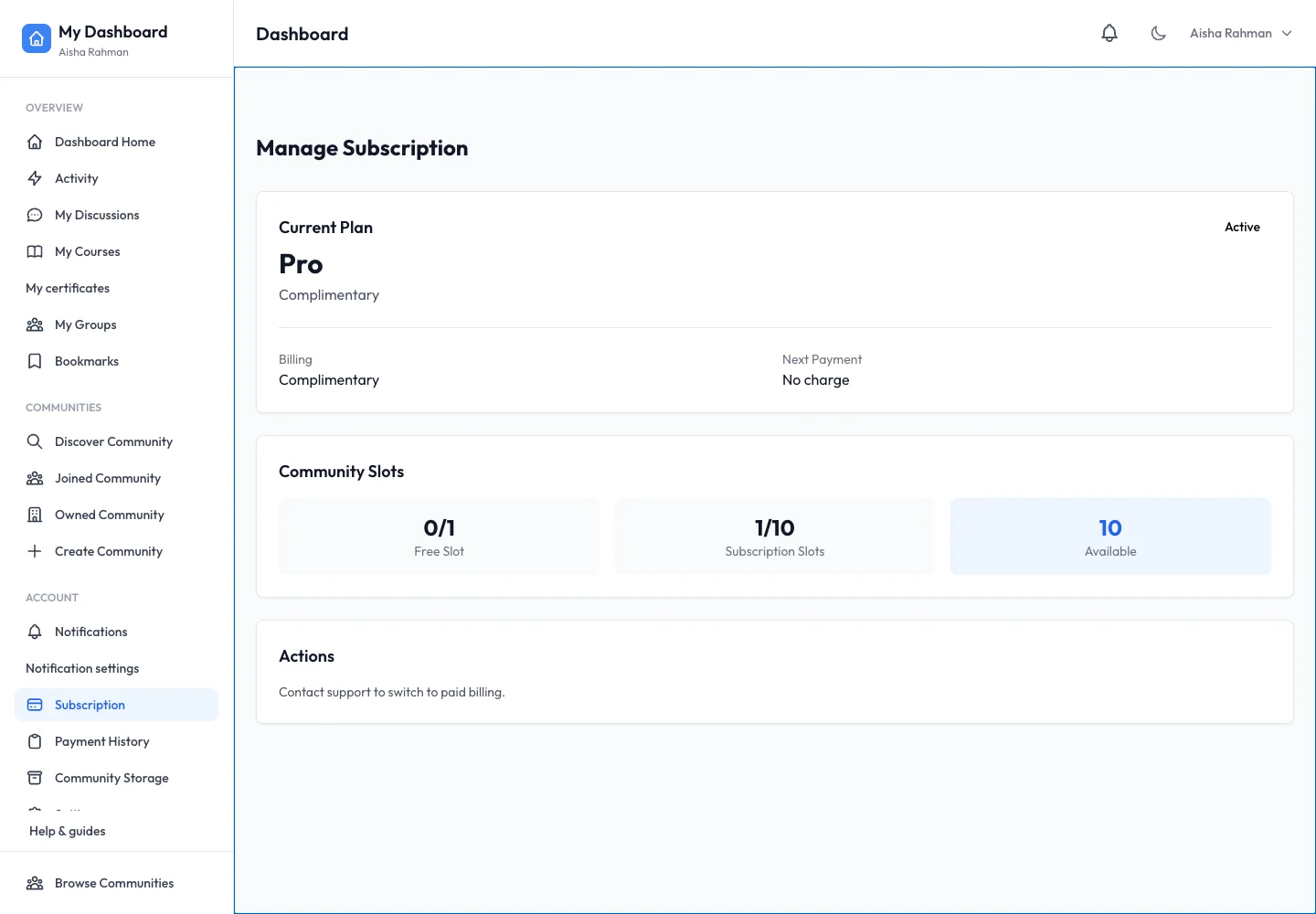
Use Subscription in your personal dashboard. Review the current plan, status, billing source and next payment information. Check the free and subscription community-slot counts separately.
2. Compare current plans
Open the available plans view. Switch Monthly or Yearly and read the displayed price and allowances. Use the current screen for pricing rather than a guide screenshot. Check community slots, groups, members, storage and per-video upload limits.
3. Review the proposed change
Choose the plan action offered to your account. Read the confirmation and effective date before continuing. The screen explains when a downgrade takes effect. A complimentary account may show Contact Support instead of a paid checkout or self-service switch.
4. Confirm the saved status
After completing an authorised billing action, return to Manage Subscription. Check the plan, billing status and slot allowance. If a payment is pending, inspect the result before starting another checkout.
Expected result
You understand the current plan and capacity, and any confirmed change is reflected in subscription management.
Troubleshooting
- Only Contact Support appears: your billing source or entitlement may require assistance, as in the complimentary example.
- No free paid slot: inspect subscription slots rather than the separate free slot.
- Cannot downgrade: compare current usage with the smaller plan’s limits.
- Community slot type needs changing: slot type is fixed at creation; changing a subscription does not rewrite that choice.