Community membership, group membership, courses and resources can be separate purchases. Read each offer before paying.
Before you start
Use the account that should receive access. Review the amount, currency, item and any access duration on the checkout page.
Steps
1. Review the purchase
Open the paid community, group, course or resource. Check what the payment includes. Apply a valid course coupon only in its supported checkout field and review the new total before confirming payment.
2. Wait for the result
Complete checkout through the displayed payment flow. Return to Recqa and wait for the result. A pending or processing status is not the same as completed payment; avoid repeated purchases while the original is unresolved.
3. Open Payment History
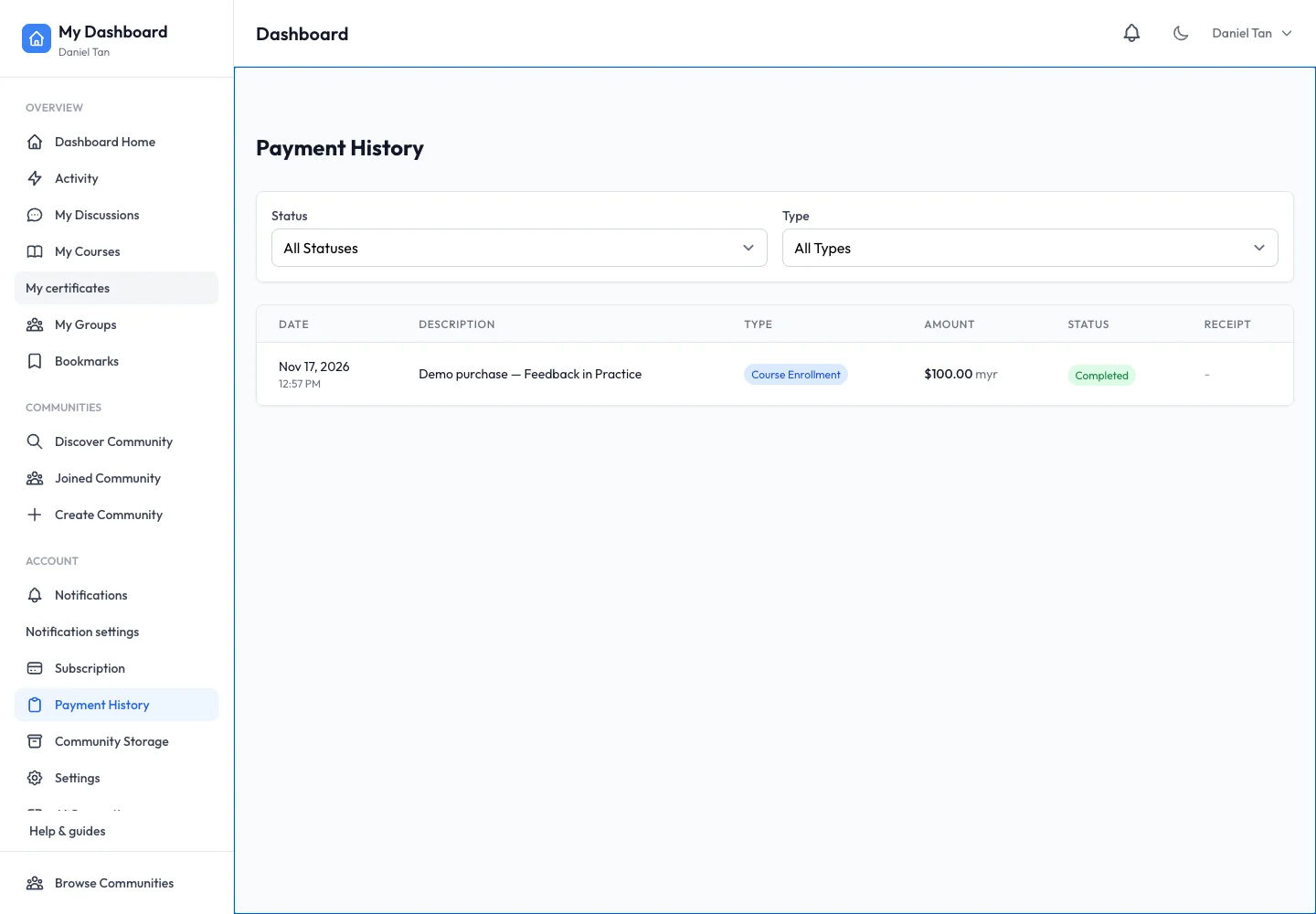
Choose Payment History in your account sidebar. Find the transaction by item, date and amount. Open its details or receipt where available and note the reference if you need support.
4. Check the purchased access
Return to the item using the same account. If payment completed but access is missing, give support the transaction reference and item name. For a refund request, contact the responsible team and explain the problem; do not remove your account as a substitute for a refund request.
Expected result
You can identify the payment’s current status and the item it relates to, and provide a useful reference when requesting help.
Troubleshooting
- Payment missing: check whether another account or email was used.
- Pending after checkout: wait for the result and contact support if it remains unresolved.
- Refund status shown: inspect the amount and details; partial and full refunds are different.
- Receipt link unavailable: provide the transaction reference to support instead.